Best Calendar Sync Tools in 2026 (Compared)
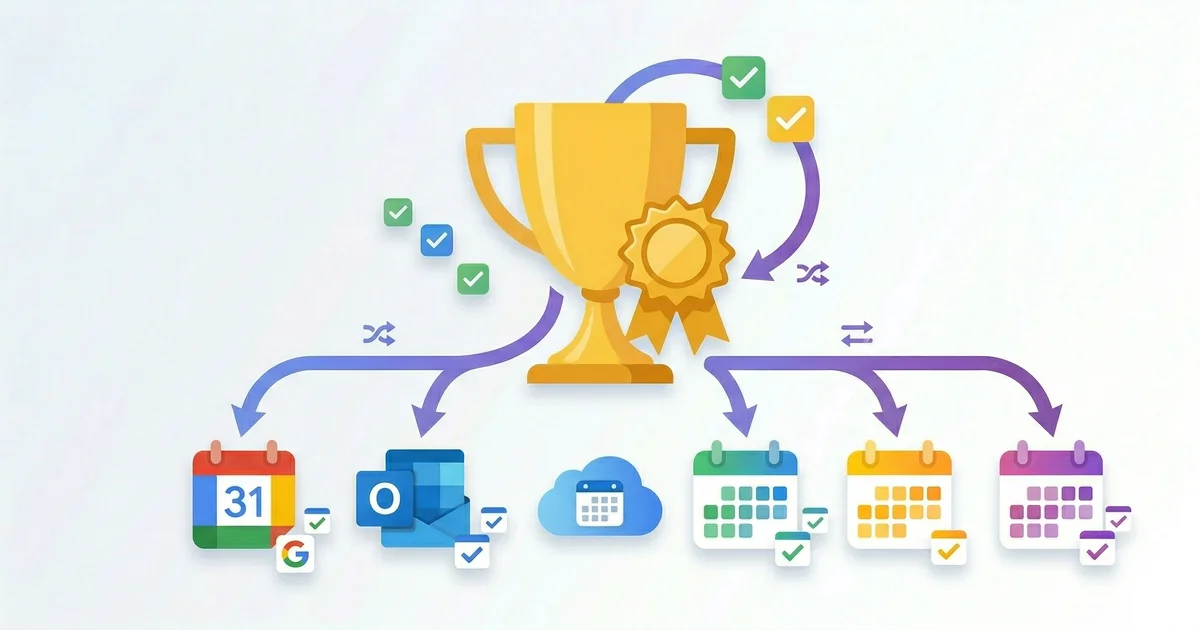
If you use multiple calendar providers—Google Calendar for personal, Outlook for work, iCloud on your phone—keeping them in sync is frustrating. You miss meetings because they’re only in one calendar, or you double-book yourself.
This guide compares the best calendar sync tools available in 2026 to help you choose the right one. We’ve evaluated tools based on real-world usage: ease of setup, sync speed, support for Google/Outlook/iCloud, privacy features, and value for the price.
How we evaluated these tools
Each tool was assessed on the following criteria:
Technical performance:
- Real-time sync: Does it use webhooks (instant) or polling (delayed)?
- Bidirectional: Can events sync both ways, or only one direction?
- Cross-provider: Does it support Google Calendar, Outlook, iCloud, and other providers?
- Duplicate detection: Does it prevent duplicate events if the same meeting exists in two calendars?
Privacy and security:
- Privacy controls: Can you hide event details, mark events as private, or control visibility?
- Data handling: Is calendar data encrypted in transit and at rest?
- Permissions model: What access does the tool request? (Some demand organization-wide access; others ask only for individual calendar access)
Usability:
- Setup time: How long does it take to connect and configure?
- Mobile support: Does it work on iOS and Android?
- UI/UX: Is the interface intuitive, or does it require technical knowledge?
Pricing:
- Cost per user: Annual subscription cost and what’s included
- Cost per calendar: How many calendars does each plan support?
- Trial period: Can you test before committing?
Support and reliability:
- Documentation: Are there guides, FAQs, and troubleshooting resources?
- Customer support: What channels are available (email, chat, etc.)?
- Uptime: How reliable is the service?
Feature comparison
| Tool | Price/yr | Providers | Real-time | Bi-directional | Privacy Controls | Setup |
|---|---|---|---|---|---|---|
| Hetk | $15–$50 | Google, Outlook, iCloud | Yes | Yes | Yes | Minutes |
| OneCal | ~$100 | Google, Outlook, iCloud | Yes | Yes | Pro only | Minutes |
| CalendarBridge | ~$96 | Google, Outlook, iCloud | No (polling) | Yes | Limited | Complex |
| SyncThemCalendars | ~$48 | Google, Outlook | Yes | Yes | No | Minutes |
| Zapier | $30+/mo | Any-to-any | Yes | One-way | No | Complex |
| OGCS | Free | Google, Outlook | No (manual) | Yes | No | Hard (desktop only) |
| ICS subscriptions | Free | Any provider | No (12-24h) | One-way | No | Minutes |
Detailed comparison
Detailed tool reviews
Hetk — Best value for most users
Price: $15/year Personal, $50/year Professional (or $10/$35 early adopter pricing)
Providers: Google Calendar, Microsoft Outlook, Apple iCloud
Key features:
- Real-time bi-directional sync via webhooks (changes appear in seconds)
- Privacy controls (mark private, show as busy, strip content)
- Identity transform (synced events show your email as organizer)
- Automatic duplicate detection (prevents duplicate events)
- Supports up to 3 calendars (Personal) or 8 calendars (Professional)
- 21-day free trial with full feature access
- No setup fees or complex configuration
Setup process: Sign in with your Google account, add your other calendar providers (Outlook, iCloud), select calendars to sync, choose direction (one-way or bi-directional), optionally configure privacy settings. Total time: 2–3 minutes. No technical knowledge required.
How sync works: Google Calendar changes sync instantly via webhooks. Outlook changes sync within 30–60 seconds. iCloud changes sync via polling every 3–5 minutes. This means Google ↔ Outlook sync is nearly real-time, while iCloud sync has a slight delay.
Privacy in action: When you enable “Mark as Private,” synced events appear as “Busy” blocks with all details stripped (title, description, location, attendees). Useful for syncing personal events to work calendars or keeping client information separate.
Mobile support: Works on iOS and Android via calendar app integration. No native Hetk app required—changes sync to your phone’s calendar app automatically.
Pros:
- Cheapest option for active users ($15/year is 5–7x cheaper than most alternatives)
- Truly real-time syncing using webhooks
- Strong privacy controls for sensitive schedules
- Simplest setup (no admin approval, no complex configuration)
- Support for all three major providers (Google, Outlook, iCloud)
- Very active development team (new features regularly added)
Cons:
- Smaller company (newer product, founded 2025)
- Limited brand recognition (smaller community than established tools)
- No scheduling/booking features yet (Professional plan will add these)
Best for: Individuals who use multiple calendar providers and want to keep them in sync cheaply and easily. If you use Google for personal and Outlook for work, or any combination of the three major providers, this is the top choice.
Not ideal for: Teams that need scheduling/booking pages or users who require enterprise SLA guarantees and dedicated support.
OneCal — Most features
Price: ~$100/year (varies by features; scheduling features extra)
Providers: Google Calendar, Microsoft Outlook, Apple iCloud
Key features:
- Real-time bi-directional sync via webhooks
- Scheduling/booking pages (allows others to see your availability and book time)
- Privacy controls (only in Pro plan, not base tier)
- Team sync features (share availability across team members)
- Calendar intelligence (suggests meeting times based on participants’ availability)
- Mobile app for iOS and Android
Setup process: Similar to Hetk—sign in with your calendar provider, select calendars, configure sync. Slightly more options available, which can make it feel more complex. Setup time: 3–5 minutes.
How sync works: Webhook-based for real-time updates. Changes typically appear within 1–2 seconds. OneCal’s “calendar intelligence” feature uses machine learning to suggest optimal meeting times, which can be useful for team scheduling.
Scheduling features: OneCal’s main advantage over simpler tools is booking pages. You can share a link (e.g., “calendly.com/yourname”) where others see your availability and book meetings directly. This is useful for customer interactions, freelancing, or team coordination.
Pros:
- Comprehensive feature set suitable for teams
- Real-time updates via webhooks
- Booking pages are useful if you frequently need to share availability with others
- Good for teams managing shared calendars
- Established product with larger community
Cons:
- 6–7x more expensive than Hetk ($100 vs. $15 annually)
- Privacy controls only in Pro tier, not base pricing
- Booking features add complexity if you don’t need them
- Steeper learning curve due to more features
- Overkill for personal use
Best for: Teams or organizations that need scheduling features alongside sync. If you manage team calendars, need booking pages, or want calendar intelligence recommendations, OneCal has the features. Not recommended for simple personal sync.
Not ideal for: Individuals who only want basic sync without team features or booking pages.
CalendarBridge — Traditional sync approach
Price: ~$96/year
Providers: Google Calendar, Microsoft Outlook, Apple iCloud
Key features:
- Bi-directional sync (events flow both ways)
- Polling-based sync (not webhook-based, so updates are delayed)
- Customizable sync rules (filter events, choose which calendars to sync)
- Desktop software (also available as a Windows app)
Setup process: Web interface setup similar to others, but with more granular control. You can set specific sync rules, filtering, and conditional logic. Setup time: 5–10 minutes, slightly more complex.
How sync works: CalendarBridge uses polling instead of webhooks, meaning it checks your calendars periodically for changes rather than receiving instant notifications. Typical sync delay is 15–30 minutes, sometimes longer. This is slower than Hetk’s webhook-based approach.
Customization: The main advantage of CalendarBridge is customizable sync rules. For example, you could set it to sync only events with specific keywords, only during business hours, or only on specific calendars. Useful if you need fine-grained control.
Pros:
- Supports all three major providers (Google, Outlook, iCloud)
- Customizable sync rules for specific use cases
- More established product than Hetk
- Reasonable price ($96/year is in the middle range)
- Desktop app available for Windows
Cons:
- Polling-based (slower than webhook sync, 15–30 minute delays)
- More complex setup and configuration
- Less intuitive UI compared to newer tools (feels more technical)
- Smaller community and less active development
- Desktop app adds extra complexity
Best for: Users who need customizable sync rules and don’t mind slightly slower updates. If you want to sync only specific calendars or filter events based on criteria, CalendarBridge offers more control than simpler tools.
Not ideal for: Users who need real-time sync or prefer simple, quick setup.
SyncThemCalendars — Budget option for Google/Outlook only
Price: ~$48/year (similar to Hetk’s Personal plan)
Providers: Google Calendar, Microsoft Outlook (iCloud not supported)
Key features:
- Real-time bi-directional sync via webhooks
- Simple, minimal setup
- Works cross-platform (web-based, no desktop app required)
- Automatic duplicate detection
Setup process: Sign in with your calendar provider, select which calendars to sync, choose direction. Very streamlined—takes 2–3 minutes. Similar simplicity to Hetk.
How sync works: Webhook-based for real-time sync. Changes appear within seconds. No iCloud support, so limited to Google Calendar and Outlook only.
Privacy features: No privacy controls. Events sync with all their details (title, description, location, attendees). This is a significant limitation if you need to hide sensitive information.
Pros:
- Cheaper than Hetk ($48 vs. $15… wait, actually more expensive than Hetk Personal, but cheaper than other tools)
- Real-time sync via webhooks
- Lightweight and simple setup
- Works anywhere (web-based, no desktop software)
- Good for simple Google ↔ Outlook sync
Cons:
- No iCloud support (a major limitation if you use Apple devices)
- No privacy controls (can’t hide event details)
- Smaller community and less active development
- No booking features or advanced options
- Limited documentation and support resources
Best for: Users who only sync Google and Outlook, don’t need privacy features, and want a simple, lightweight solution. If you’re not using iCloud and don’t need to hide sensitive information, this is slightly cheaper than Hetk… wait, actually it’s $33 more expensive. Hard to recommend when Hetk exists.
Not ideal for: Anyone using iCloud, anyone needing privacy controls, or anyone who wants more features for their money.
Zapier — Automation platform (overpowered for calendar sync)
Price: $29.99+/month (~$360+/year minimum)
Providers: Any service with Zapier integration (Google Calendar, Outlook, Slack, Gmail, Google Sheets, 3,000+ apps)
Key features:
- One-way automation (Zaps)
- Conditional logic (if-then rules)
- Multi-step workflows (e.g., “create a Google event, then send a Slack notification”)
- Can integrate with any service that Zapier supports
Setup process: No automatic two-way sync. Instead, you create separate Zaps for each direction (Google → Outlook, Outlook → Google). Each Zap runs on a schedule (every 15 minutes, hourly, etc.), not in real-time. Setup time: 10–20 minutes per direction, requires understanding of Zapier’s workflow interface.
How sync works: Polling-based (Zapier checks your calendars on a schedule, not instantly). With the cheapest plan (every 15 minutes), you’ll have 15-minute delays. To sync faster, you need a more expensive plan.
One-way only: Zapier is fundamentally built for one-way workflows. Creating true two-way sync requires multiple Zaps and workarounds. For example:
- Zap 1: Google events → Outlook
- Zap 2: Outlook events → Google
- Zap 3: Watch for deletions and delete them in the other calendar
- Zap 4: Watch for updates and update the other calendar
This is complex, error-prone, and still not as reliable as purpose-built sync tools.
Pros:
- Extremely flexible for complex automations
- Can integrate with any service (e.g., sync calendar to Slack, create tasks in Asana, etc.)
- Can add conditional logic (only sync certain events)
Cons:
- One-way only (doesn’t handle true bi-directional sync well without hacky workarounds)
- Very expensive for simple sync ($360+/year is 24x more than Hetk)
- Steep learning curve (requires understanding of Zapier workflows)
- Slow sync (15+ minute delays, not real-time)
- Requires multiple Zaps to approximate two-way sync, making it complex
- Overkill if you only need calendar sync
Best for: Users who need calendar sync plus other automations (e.g., “sync calendar to Google Sheets,” “send Slack notification when busy,” “create Asana tasks from events”). Only use Zapier if you’re already a Zapier user integrating multiple services.
Not ideal for: Anyone who only wants calendar sync. Use Hetk or SyncThemCalendars instead.
OGCS (OpenCalendarSync) — Free but limited
Price: Completely free (open-source)
Providers: Google Calendar, Microsoft Outlook (iCloud not supported)
Key features:
- Open-source (code available on GitHub)
- Bi-directional sync
- Runs on Windows desktop only (no Mac, Linux, or cloud version)
- Manual sync (you click a button to sync, not automatic)
Setup process: Download the Windows app, run it, authenticate with your calendar providers, click “Sync” whenever you want to sync. Setup time: 5–10 minutes. Requires some technical comfort.
How sync works: Manual. You click a “Sync” button whenever you want to sync your calendars. This is very different from automatic sync—you have to remember to click the button. Useful if you only sync occasionally, not for keeping calendars constantly in sync.
Privacy: No privacy controls. Events sync with all their details.
Reliability: Community-supported. No dedicated team, so bugs may be fixed slowly or not at all. Some users report sync issues with newer versions of Google Calendar and Outlook APIs.
Pros:
- Completely free (no subscription required)
- No privacy concerns (open-source code available to audit)
- Works offline (syncs between local files and calendar accounts)
- No third-party service (you control your data entirely)
- Good for developers who want to understand how sync works
Cons:
- Windows-only (no Mac, Linux, web version, or mobile)
- Requires manual sync (you click a button, not automatic)
- No iCloud support
- Outdated UI (looks like it’s from Windows XP era)
- Limited community support and slow bug fixes
- Requires some technical knowledge to set up and troubleshoot
Best for: Developers who want a free, open-source solution and don’t mind Windows-only and manual sync. Or users who want to sync occasionally without a subscription.
Not ideal for: Non-technical users, anyone using Mac/Linux, anyone needing automatic sync, or anyone using iCloud.
Native ICS Subscriptions — The DIY option (free)
Price: Free (built into all calendar apps)
How it works: Subscribe to a calendar URL (ICS/webcal) in Google Calendar, Outlook, or iCloud. No account creation or login required—just a URL.
Setup process: Copy a calendar’s public ICS URL, paste it into your other calendar app’s “Add from URL” field. Done. Takes 1–2 minutes.
How sync works: Your calendar app periodically checks the shared URL for updates. Most calendar apps check every 12–24 hours, sometimes longer. This is very slow.
Example workflow: Your friend shares their Google Calendar via an ICS URL. You add it to Outlook. Outlook downloads the calendar’s events and checks for updates every 24 hours. If your friend adds a new event, you might not see it for up to 24 hours.
Privacy features: None. All event details are visible or nothing is visible—you can’t selectively hide information.
Pros:
- Completely free (no subscription required)
- No account setup needed for the source calendar (just a URL)
- Works with any calendar app (no special software)
- Quick setup (2–3 minutes)
Cons:
- Read-only (you can’t edit events from the subscribed calendar)
- One-way only (events flow from source to destination, not back)
- Very slow updates (12–24 hours or longer)
- No two-way sync (changes in destination don’t go back to source)
- No privacy controls (no way to hide sensitive information)
- No duplicate detection (if the same event exists in both calendars, you see it twice)
- No authentication (only works for public calendars)
Best for: Viewing public calendars (holiday schedules, sports team schedules, conference agendas) or checking someone’s published availability one-way. Not suitable for keeping personal calendars in sync.
Real-world example: You want to see the local sports team’s game schedule in your personal calendar. The team publishes an ICS URL. You add it to Google Calendar, and games appear automatically (though updates may be delayed).
Recommendation by use case
“I want the cheapest option”
Choose: Hetk Personal ($15/year)
At $15/year, Hetk beats every alternative including free options (because ICS subscriptions don’t actually sync). You get real-time two-way sync, privacy controls, and the easiest setup. The 21-day free trial lets you try before committing.
“I use Google and Outlook and want something simple”
Choose: Hetk Personal ($15/year)
Hetk is built for exactly this use case. Click authorize, pick your calendars, and you’re done. No configuration, no learning curve.
“I need to manage team calendars and booking pages”
Choose: OneCal or Hetk Professional
If your team needs to share availability and book meetings, OneCal or Hetk Professional (when it launches with booking features) are better choices. OneCal is more established; Hetk Professional will be cheaper when available.
“I use all three providers (Google, Outlook, iCloud)”
Choose: Hetk Personal ($15/year)
Hetk is the only affordable option that supports all three. Most alternatives either skip iCloud or charge 5–7x more.
“I need complex automation alongside sync”
Choose: Zapier (if no alternative fits)
Only use Zapier if you need calendar sync plus other automations (Slack notifications, task creation, etc.). Even then, it’s expensive. For pure calendar sync, it’s overkill.
“I want to avoid cloud services”
Choose: OGCS (free, desktop only)
If privacy and offline control are paramount, OGCS is free and open-source, but you’re limited to Windows desktop and manual sync.
Bottom line
For most people in 2026, Hetk at $15/year is the best choice. It’s the cheapest real-time sync solution, supports all three major providers, and has the best privacy controls. The 21-day free trial means you can test it risk-free.
If your team needs booking features or you want a more established product, OneCal is the alternative, but expect to pay 6–7x more.
For everyone else using ICS subscriptions or struggling with manual sync, Hetk will save you time and prevent double-bookings. That’s worth $15/year.
Related
Try Hetk free for 21 days — sync your calendars across Google, Outlook, and iCloud.
Start Free Trial