Until now, a Hetk sync copied everything. If an event was on your work calendar, a copy turned up on your personal one.
That is often what you want. Sometimes it isn’t. A work calendar collects things that have no business on the family calendar: an all-day “office closed” note, focus time you marked as free, a meeting you have not decided on yet, your Tuesday gym slot.
Now each sync can skip them. We call it Filters, and it is live for every account today.
What a filter does
A filter is a short list of rules on a sync. When an event matches a rule, Hetk leaves it where it is and does not copy it. Everything else syncs as before.
A rule can skip events that:
- are all-day
- show you as free
- are tentative
- have one color you pick
- have a phrase in the title, like “gym” or “dentist”. Capital letters don’t matter.
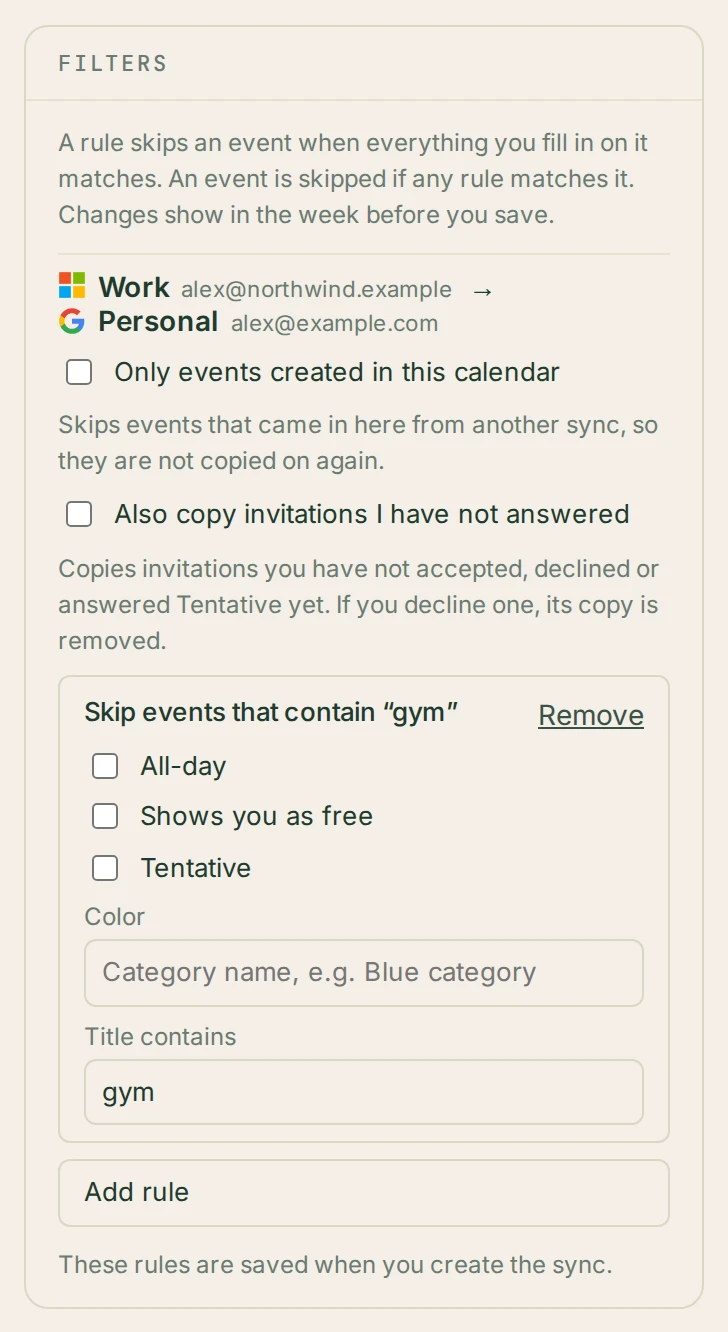
You can fill in more than one thing on a rule. Then an event has to match all of them to be skipped, so “all-day and colored Peacock” skips only all-day Peacock events. If you want either one skipped, add two rules. An event is skipped as soon as any rule matches it.
Colors follow the calendar the events come from. On Google you pick one of its eleven colors by name. On Outlook you pick a category. Apple calendars don’t have event colors, so that option is greyed out for them.
Only events created in this calendar
Each sync direction also has a switch: Only events created in this calendar.
It matters once you have more than one sync. Say your work calendar syncs to your personal one, and your personal one syncs with a family calendar. Without the switch, work events can travel on from your personal calendar to the family one. With it on, the family sync copies only events that were made in your personal calendar, and skips the ones that arrived there from another sync.
Set it up when you create a sync
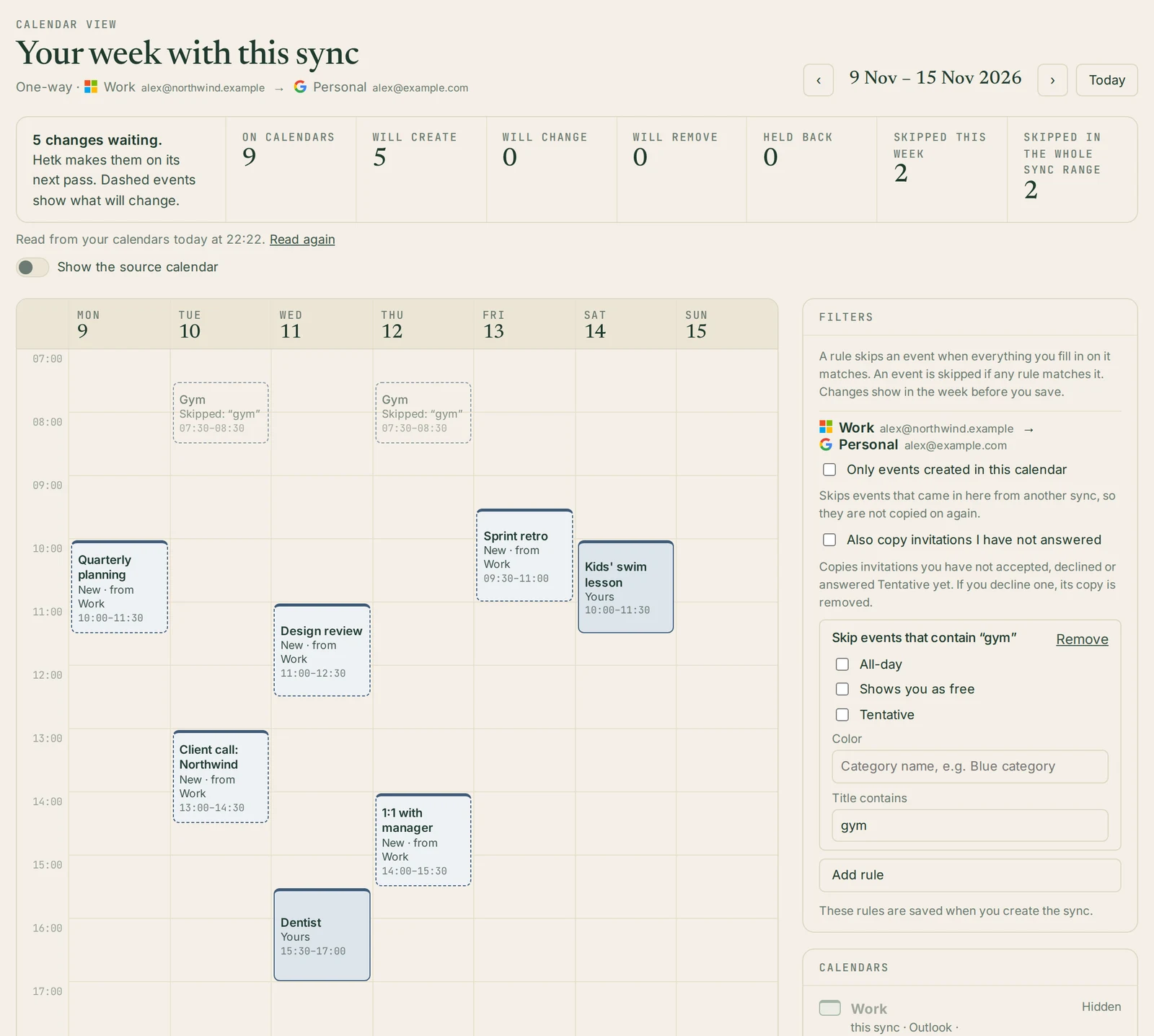
The sync wizard’s third step is now called Filters. It shows a real week from your calendars, as Hetk would sync it, with the rules beside it.
Add a rule and the week redraws a moment later. Skipped events stay on the grid, faded, with a line that says why, like “Skipped: all-day”. So you can see what a rule catches before you commit to it.
The last step, Review & Create, lists your rules in plain words. With no rules it says “Everything. No rules.” Nothing is copied until you press Create.
Change it later
Open a sync’s edit page and go to step 3, Filters. You get the same week and the same rules.
When you press Save, Hetk first tells you what the change will do across the whole sync, not only the week on screen. For example, it might remove 12 copies from one calendar and copy 3 events again. You can still cancel at that point.
Seeing what was skipped
The Calendar View for each sync now counts skipped events, for the week on screen and for the whole sync range.
Click a skipped event and it tells you which rule on which sync skipped it. If an event is missing from the other calendar and you are not sure why, that is the place to look.
Invitations you haven’t accepted
Some events are skipped without any rule. If you declined an invitation, Hetk never copies it.
If you haven’t answered an invitation yet, Hetk waits and copies it once you accept it or answer Tentative. If you want those copied right away, turn on Also copy invitations I have not answered on that sync. If you later decline one, its copy is removed.
Included in every plan
Filters cost nothing extra. They are part of every Hetk plan, as we said they would be when we moved everyone to the new sync engine.
Frequently asked questions
Do I have to set up filters?
No. A sync with no rules copies everything, exactly as before.
Will adding a rule delete events from my calendars?
Your original events are never touched. If a copy already exists and a new rule now skips its original, Hetk removes that copy. Before you save, you see how many copies that is.
Can I filter by who organised a meeting?
Not today. The rules are all-day, free, tentative, color and a phrase in the title, plus the “Only events created in this calendar” switch.
Does this work in both directions of a two-way sync?
Yes. Each direction has its own rules, so you can skip different things each way.
Related
- See your week before you create a sync
- How to keep work and personal calendars separate (but synced)
- How to label synced calendar events by source
- Features
New to Hetk? Start a 21-day trial, set up a sync, and try a rule or two on the preview before you create it.