
If someone sends you a calendar link (ICS or webcal URL), you can add it directly to Google Calendar. This guide covers how to subscribe and when it actually makes sense.
Short answer: yes, a subscribed ICS calendar updates automatically, but Google decides when. Changes usually show up within 12–24 hours, and you can’t make it check more often. The calendar is also read-only. If you need changes in seconds, or edits that go both ways, you need sync that talks to each calendar directly (through its API or CalDAV) instead of an ICS link.
What is an ICS/webcal URL?
ICS (iCalendar) is a standard calendar format. A webcal URL (or https:// URL) is a calendar feed that your calendar app can subscribe to.
Here’s what you need to know:
- Read-only — you can view events but can’t edit them
- One-way — events flow from source to your calendar only
- Simple — minimal setup, just a URL
- Slow updates — refreshes every 12–24 hours typically
- No duplicate detection — if the same event exists in two calendars, you’ll see it twice
Common sources of ICS URLs:
Calendar services:
- Google Calendar shared/published calendars (secret address)
- Outlook published calendars
- iCloud public calendars
Travel and bookings:
- Airbnb listing calendars (booking availability—shows when your rental is booked)
- Vrbo and other vacation rental sites
- Hotel availability calendars
- Flight schedules (some airlines publish ICS feeds)
Sports and entertainment:
- Sports team schedules (NFL, NBA, MLB, Premier League, etc.)
- Conference and tournament schedules
- Concert and event calendars
- College sports schedules
Public information:
- Holiday calendars (public holidays by country/region)
- Lunar calendar (phases of the moon)
- Religious holidays and observances
- School and academic calendars
- Government observance calendars (federal holidays, etc.)
Team and work:
- Shared team calendars (published by companies or groups)
- Meeting room availability calendars
- Company holiday calendars
- Project milestone calendars
How to subscribe to an ICS calendar in Google Calendar
Step-by-step
- Open Google Calendar and sign in
- On the left sidebar, find Other calendars
- Click the + button next to “Other calendars”
- Select From URL
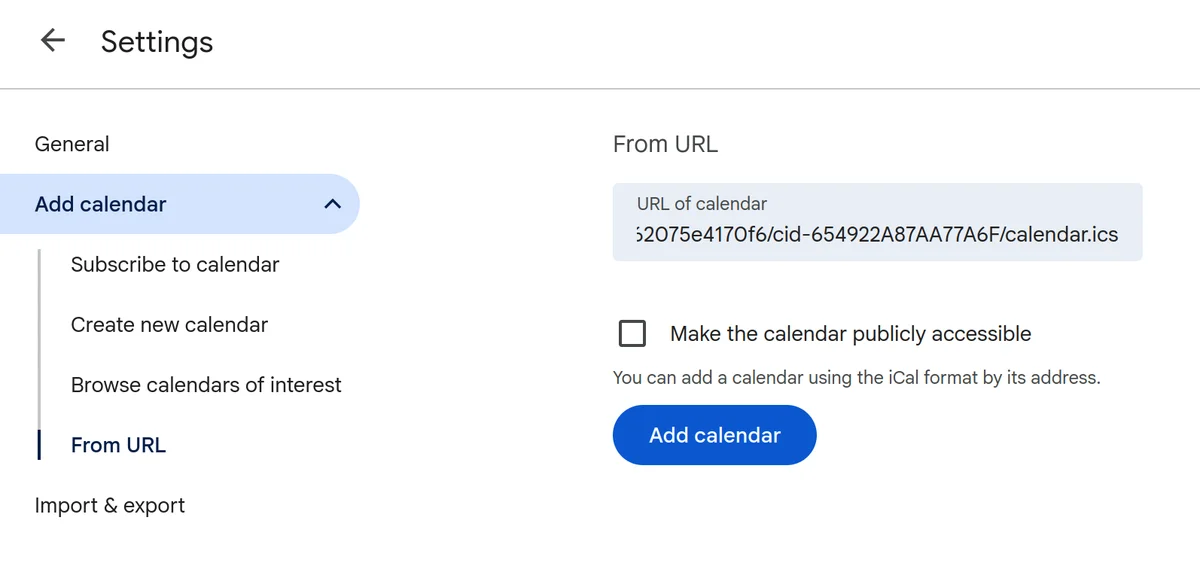
- Paste the ICS or webcal URL
- Click Add calendar
The calendar now appears in your sidebar. You’ll see all events from that calendar overlaid on your own.
Where to find ICS URLs from other services
From Outlook:
- Go to Settings > Calendar > Shared calendars
- Under Publish a calendar, select a calendar and choose Can view all details
- Copy the ICS link
From iCloud:
In Calendar app, right-click a calendar and select Share Settings
Enable Public Calendar
Copy the link
(Full walkthrough, plus the two-way alternative: how to sync iCloud Calendar with Google Calendar.)
From Airbnb:
- On your listing, find the Calendar section
- Copy the iCal link to share availability
Limitations of ICS subscriptions
- Read-only — you can’t edit events
- Slow refresh — updates take 12–24 hours
- No privacy controls — it’s all or nothing
- One-way only — events don’t sync back to the source
- No duplicate detection — you’ll see the same event twice if it exists in both calendars
This works for public calendars (holidays, sports schedules). For keeping personal calendars in sync, it’s not enough.
Better option: real-time sync with Hetk
If you have events in multiple calendar providers and need them to stay in sync automatically, Hetk is better than ICS subscriptions.
Hetk syncs between Google Calendar, Outlook, and iCloud using official APIs: within seconds for Google and Outlook, within minutes for iCloud. You get:
- Fast sync — Google and Outlook changes appear in seconds, iCloud changes within minutes
- Two-way — new events in either calendar appear in the other; edit the original and its copy follows
- Privacy controls — replace a copy’s details with “Busy”, flag the copy as private, or both
- No duplicates — Hetk won’t create duplicates if the same meeting exists in both calendars
- Automatic — no manual refresh needed
Example: work and personal calendars
If your work calendar is in Outlook and your personal calendar is in Google Calendar, Hetk syncs them both ways. Create a work meeting in Outlook, and it appears on your Google Calendar within seconds. You see conflicts immediately instead of getting surprised later.
Example: team schedule + personal calendar
With ICS, games appear in your calendar and update every 12–24 hours. If the team reschedules, you might not notice for a day.
With Hetk, schedule changes appear within seconds from a Google or Outlook calendar, and within minutes from iCloud.
When to use Hetk vs ICS subscriptions
Use ICS subscriptions for:
- Public calendars that rarely change (holiday schedules, conference dates)
- One-time viewing of someone’s availability
- Sources where you don’t need real-time updates
- Free calendars with no need for privacy controls
Use Hetk for:
- Syncing between multiple personal or work calendars
- Situations requiring privacy controls (hiding details)
- When you need real-time updates (sports games, schedule changes)
- Preventing double-bookings across multiple calendars
Pricing
Hetk’s Personal plan is $15/year for unlimited calendars with up to 3 sync pairs, or $10/year with early adopter pricing. Includes a 21-day free trial.
Troubleshooting ICS subscriptions
Calendar doesn’t appear after subscribing
Problem: The calendar doesn’t show up in your sidebar.
Check these:
- URL format — must start with
https://orwebcal://(nothttp://) - Permissions — the source calendar must be published or shared as “Anyone can view”
- Server status — the source calendar’s server might be down. Wait a few minutes and try again
- Network — try refreshing your browser
Subscription URL is broken
Problem: Events stopped appearing or you see an error message.
Possible causes:
- Source calendar was deleted or unpublished — contact the owner to republish it
- URL changed — some sources (like Airbnb) change URLs when updated. Copy the new URL and replace the old one
- Server moved — the provider relocated servers (rare). You’ll need a new URL
Delete the broken subscription and re-add it with the current URL. Go to Settings > Calendars > [Calendar name] > Delete calendar.
Events show up late or not at all
Problem: New events take days to appear.
Possible causes:
- Slow refresh — ICS refreshes every 12–24 hours. Normal, can’t be changed
- Calendar too large — if the source has 10,000+ events, Google may skip updates
- Too many subscriptions — Google Calendar can handle ~100 subscriptions. After that, syncing slows down
If nothing has changed after 24 hours, delete the calendar and add the URL again.
Frequently asked questions
Can I speed up ICS refresh?
No, the refresh rate is controlled by the calendar provider (Google, Outlook, iCloud), not by you. In Google Calendar it is often 12–24 hours. Some sources may update faster (6–12 hours) or slower (24–48 hours), but you can’t change this. If you need real-time updates, use Hetk instead.
Why are some events missing?
This could happen for a few reasons:
- Not yet synced: If you just subscribed, wait 12–24 hours for the first sync
- Too many events: The source calendar has so many events that Google skips some to manage performance
- Calendar is too large: If there are 10,000+ events, subscriptions may be incomplete
- Private events: The source calendar is shared with “View all events” but private events (marked as private by the owner) may not sync
Solution: Contact the calendar owner to verify the calendar is shared correctly, or switch to a sync tool like Hetk that handles large calendars better.
What’s the difference between ICS and CalDAV?
ICS (iCalendar) is a file format for events. You subscribe to an ICS URL and get a static snapshot that updates periodically.
CalDAV is a protocol that allows your calendar app to sync with a server in real-time. It’s bidirectional and more efficient than ICS subscriptions.
Most calendar apps support both. ICS subscriptions are simpler to set up (just a URL), while CalDAV syncing (used by Hetk and other tools) is faster and more reliable.
In practice: ICS subscriptions are good for public calendars, CalDAV/API-based sync (like Hetk) is better for personal calendars.
Which should you use?
| Scenario | Best option |
|---|---|
| View a published holiday or sports calendar | ICS subscription |
| Check Airbnb availability calendar | ICS subscription |
| Keep work and personal calendars in sync | Hetk |
| Sync Google, Outlook, and iCloud together | Hetk |
| One-time import of past events | ICS subscription or manual export |
| Real-time updates needed | Hetk |
For personal productivity and multi-provider sync, Hetk offers updates within seconds or minutes and two-way sync that ICS subscriptions can’t match.