How to Subscribe to an ICS Calendar in Outlook
Outlook lets you subscribe to external calendars using ICS (iCalendar) URLs. Whether it’s a shared team calendar, holiday schedule, or availability feed, this guide shows you how to add it in both Outlook web and desktop.
What is an ICS URL?
ICS is a standard calendar format. When someone shares a calendar via a URL (often starting with webcal:// or https://), it’s an ICS feed that you can subscribe to in Outlook.
What you should know:
- Read-only — you can view events but can’t edit them from Outlook
- One-way sync — events flow from the source to your calendar
- Slow refresh — Outlook checks for updates every 12–24 hours
- No two-way sync — your changes don’t go back to the source
Common ICS sources:
- Google Calendar public/shared calendars
- iCloud published calendars
- Team or department calendars
- Holiday schedules
- Sports team schedules
- Conference schedules
How to subscribe in Outlook web
- Open Outlook (outlook.com or Office 365)
- In the left sidebar, find Add calendar
- Select Subscribe from web
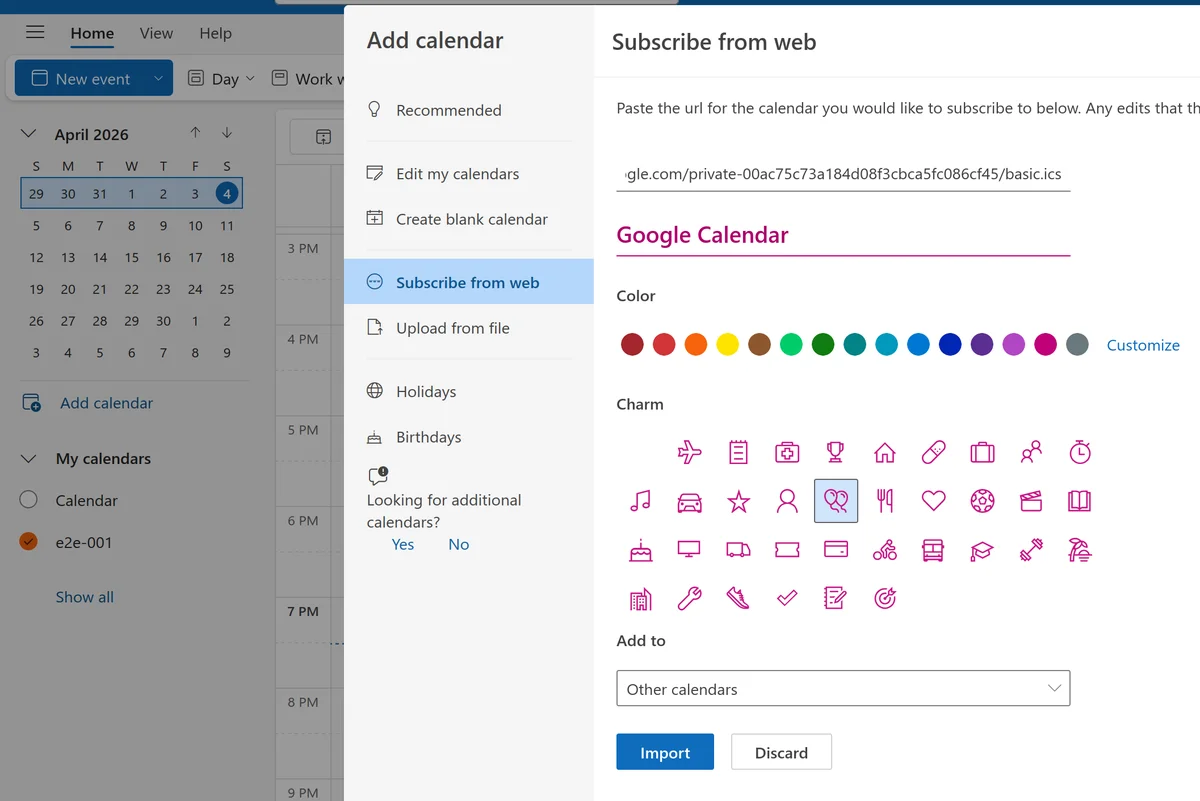
- Paste the ICS URL
- Click Import
The calendar appears in your sidebar and events show up on your calendar view.
How to subscribe in Outlook desktop (Windows)
- Open Outlook on your computer
- Go to File > Open & Export
- Select Internet Calendar Subscription

- Paste the ICS URL
- Click Add
The calendar is now subscribed and will refresh periodically.
Important: webcal:// vs https://
Outlook web requires https:// URLs, not webcal://. This is a common source of confusion.
If you have a webcal:// URL (common from Google Calendar):
- Change
webcal://tohttps:// - Example:
webcal://calendar.google.com/calendar/ical/...%40group.calendar.google.com/public/basic.icsbecomeshttps://calendar.google.com/calendar/ical/...%40group.calendar.google.com/public/basic.ics
Why the difference?
webcal://is a legacy protocol from the CalDAV standard (likehttp://for web)- Modern browsers and web apps (like Outlook web) require
https://for security - Outlook desktop is more lenient and accepts both
webcal://andhttps://
In practice:
- Outlook web: Always use
https:// - Outlook desktop: Can use either, but
https://is recommended - Google Calendar: Provides
webcal://URLs by default, but you can convert them tohttps://for compatibility
How to find ICS URLs from other calendars
From Google Calendar:
- Go to Settings > [Calendar] > Integrate calendar
- Copy the Secret address in iCal format (this is the
webcal://URL) - Convert to
https://for Outlook web
From iCloud:
- In iCloud Calendar, right-click the calendar
- Select Share Settings
- Enable Public Calendar
- Copy the link
From a colleague’s Outlook:
- Ask them to go to Settings > Calendar > Shared calendars
- Have them select a calendar and choose Can view details or higher
- Copy the published ICS link
Limitations of Outlook ICS subscriptions
- Read-only — you can’t edit subscribed events from within Outlook
- Slow refresh — changes in the source calendar appear 12–24 hours later
- No privacy controls — you see all event details or none
- One-way only — your changes don’t sync back to the source
- Manual management — if you need frequent updates, this feels slow
This works fine for static calendars (holidays, conference schedules) or low-change calendars, but it’s not suitable for actively managed calendars.
Better alternative: Hetk for real-time two-way sync
If you use Outlook with Google Calendar or iCloud and need them to stay in sync automatically, Hetk offers real-time bi-directional sync that’s much faster and more reliable than ICS subscriptions.
Hetk connects to all three providers (Google, Outlook, iCloud) via their official APIs and syncs events instantly:
- Real-time updates — changes appear in 1–5 seconds, not 12–24 hours
- Bi-directional — edit in either calendar and changes flow back to the other
- Privacy controls — mark synced events as private, show as busy only, or strip content
- Automatic duplicate detection — no duplicate events if both calendars have the same meeting
- Identity transform — synced events show your own email as organizer (not the source account)
- Automatic syncing — no need to manually refresh or manage subscriptions
Example: Outlook at work, Google at home
With ICS subscription: You subscribe to your home Google Calendar in Outlook via ICS. You see Google events in Outlook (read-only), but events you create in Outlook don’t appear in Google Calendar. It’s a one-way view only, and updates take up to 24 hours.
With Hetk: You set up a bidirectional sync between Outlook and Google Calendar. Create an event in Outlook at work, and it appears on your Google Calendar at home within seconds. Reschedule it in Google, and Outlook updates automatically. No manual steps required.
Outlook web vs desktop
Hetk works with both:
- Outlook web (outlook.com or Office 365): Full support. All features work in the browser
- Outlook desktop (Windows or Mac): Full support
- Outlook mobile (iOS/Android): Full support. Changes sync in the background
ICS subscriptions work with Outlook web and desktop, but mobile support is inconsistent.
Pricing
Hetk’s Personal plan is $15/year ($10/year with early adopter pricing) for up to 3 calendars. This includes a 21-day free trial. If you juggle multiple calendar providers, Hetk saves time and prevents scheduling conflicts.
Troubleshooting ICS subscriptions in Outlook
Calendar doesn’t appear after subscribing
Problem: You’ve subscribed to an ICS URL in Outlook, but the calendar doesn’t show up in your sidebar.
Causes and fixes:
- Invalid URL format: Make sure the URL is
https://(notwebcal://for Outlook web). Outlook web is strict about this - Calendar is private: The source calendar must be publicly shared or published. Ask the owner to make it public
- Subscription didn’t finalize: In Outlook web, wait a few seconds after clicking “Import.” The calendar should appear in your sidebar within 30 seconds
- Browser cache issue: Try refreshing the page (Ctrl+R or Cmd+R) or clearing your browser cache
Outlook desktop shows “Error” next to the subscription
Problem: In Outlook desktop, the subscribed calendar shows “Error” and no events appear.
Solutions:
- Right-click the calendar and select “Refresh” to manually retry the subscription
- Delete and re-add the subscription with a fresh URL copy
- Check your URL: Make sure it’s valid and the source calendar is still being shared
- Update Outlook: Make sure you have the latest version of Outlook installed (go to File > Office Account > Update Options)
Mobile doesn’t show subscribed calendar
Problem: You’ve subscribed to a calendar in Outlook web, but it doesn’t appear on your Outlook mobile app.
Solution: Subscribed calendars sometimes sync to mobile with a delay. Wait 5–10 minutes, then:
- Close the Outlook app completely
- Reopen the Outlook app
- Pull down to refresh the calendar list
If it still doesn’t appear, the mobile app may not support ICS subscriptions (this varies by app). Use Hetk instead for better mobile support.
Frequently asked questions
Does ICS work with new Outlook?
ICS subscriptions work with the modern Outlook (the cloud-based version released in 2024), both web and desktop. The process is the same as described above. If you have trouble, make sure you’re using the latest version.
Can I subscribe to a private Google Calendar?
No, ICS subscriptions only work with public calendars. Your private Google Calendar has a secret ICS URL, but if you share it with someone via ICS, they can see all your private events—there’s no privacy control. If you need to share a private calendar with limited visibility, use Hetk instead, which offers privacy controls to hide event details.
How do I remove an ICS subscription?
In Outlook web:
- Find the calendar in your sidebar
- Click the three-dot menu next to its name
- Select “Delete calendar”
In Outlook desktop:
- Right-click the calendar in your sidebar
- Select “Delete”
- Confirm you want to delete the subscription
The events will disappear from your calendar, but your own calendar data is unaffected.
Why is my subscription slowly getting out of sync?
ICS subscriptions can “drift” if the source calendar updates frequently and the refresh cycle misses some changes. For example:
- You subscribe to a sports team’s schedule
- The team updates a game time
- Your subscription refreshes in 24 hours and shows the new time
- But you missed the update for a day
This is why ICS subscriptions aren’t reliable for frequently-changing calendars. Use Hetk for real-time sync instead.
When to use each approach
| Situation | Best option |
|---|---|
| View a static published calendar (holidays, conference) | ICS subscription |
| Need to see someone’s availability (one-way) | ICS subscription |
| Keep Outlook and Google Calendar in sync | Hetk |
| Keep multiple providers in sync (Google, Outlook, iCloud) | Hetk |
| Real-time two-way sync needed | Hetk |
| Sync frequently changes (sports schedule, event updates) | Hetk |
For active calendar management across multiple services, ICS subscriptions are just a read-only overlay. Hetk gives you true two-way sync with the real-time updates that manual subscriptions can’t provide.
Related
- How to subscribe to ICS in Google Calendar
- How to sync iCloud with Outlook
- Hetk vs Zapier for calendar sync
Try Hetk free for 21 days — sync your calendars across Google, Outlook, and iCloud.
Start Free Trial