
You want your work colleagues to know when you’re unavailable for meetings, but you don’t want them seeing “Date night” or “Therapy” on your work calendar. The goal is syncing availability without exposing personal details.
The problem with shared calendars
Most calendar apps let you add multiple accounts and view them side by side. But only you see both calendars. Your coworkers only see your work calendar, so they schedule meetings during your personal commitments.
The obvious fix — sharing your personal calendar with your work account — creates a privacy problem. Your manager doesn’t need to see your personal appointments.
Strategy 1: One-way sync with privacy controls
Sync personal events to your work calendar as “Busy” blocks with all details stripped. Your coworkers see you’re unavailable, but learn nothing about your personal life.
How it works with Hetk
- Connect your personal calendar (Google, Outlook, or iCloud) and your work calendar
- Set up a one-way sync from personal → work (so work events don’t clutter your personal calendar)
- Enable Replace the details with “Busy” — event titles are replaced with “Busy”, descriptions and locations are removed
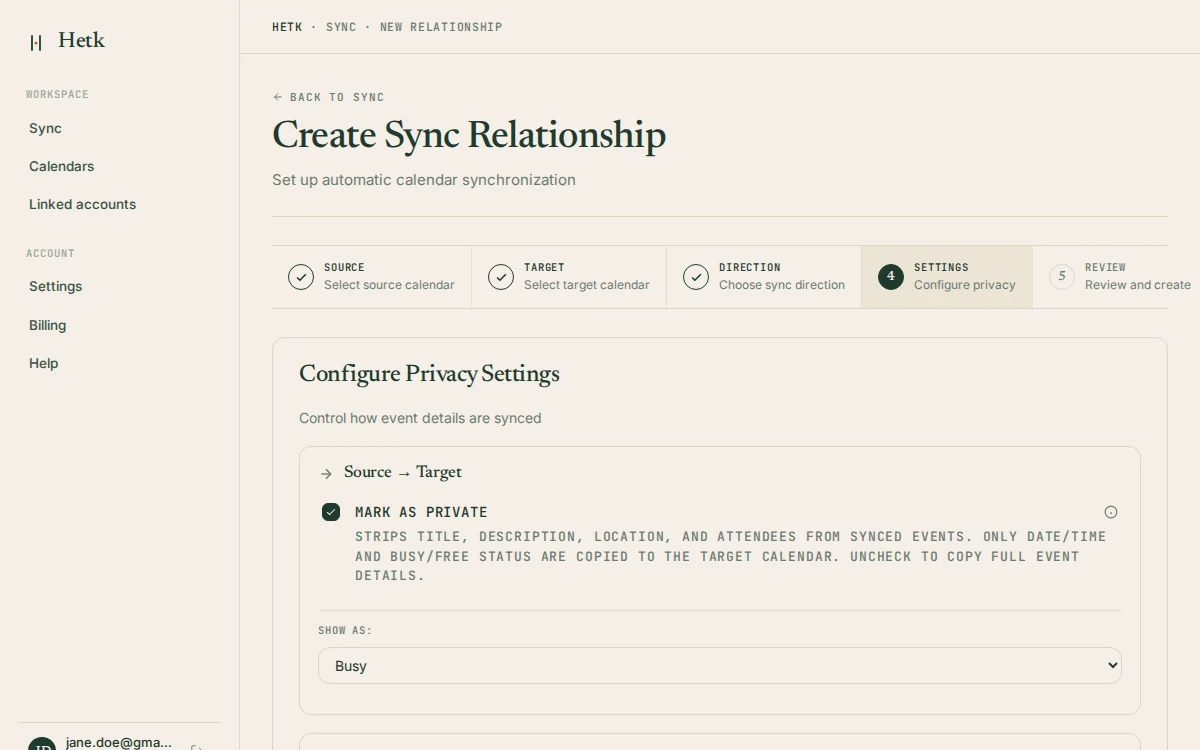
The setup takes about 2 minutes, and sync starts immediately.
What Replace the details with “Busy” actually does
When you enable Replace the details with “Busy”, Hetk transforms the synced event to hide all sensitive information:
Original event (in your personal calendar):
- Title: “Dentist appointment”
- Description: “Cleaning and checkup at 2pm, bring insurance card”
- Location: “Bright Dental on 5th Ave”
- Attendees: You, Dr. Sarah Johnson
Synced to work calendar (with Replace the details with “Busy” enabled):
- Title: “Busy”
- Description: (empty)
- Location: (empty)
- Attendees: (empty)
- Duration: Same (e.g., 2–3 PM on Tuesday)
Your coworkers see only that you’re unavailable for those two hours. The rest is hidden completely.
What your coworkers see
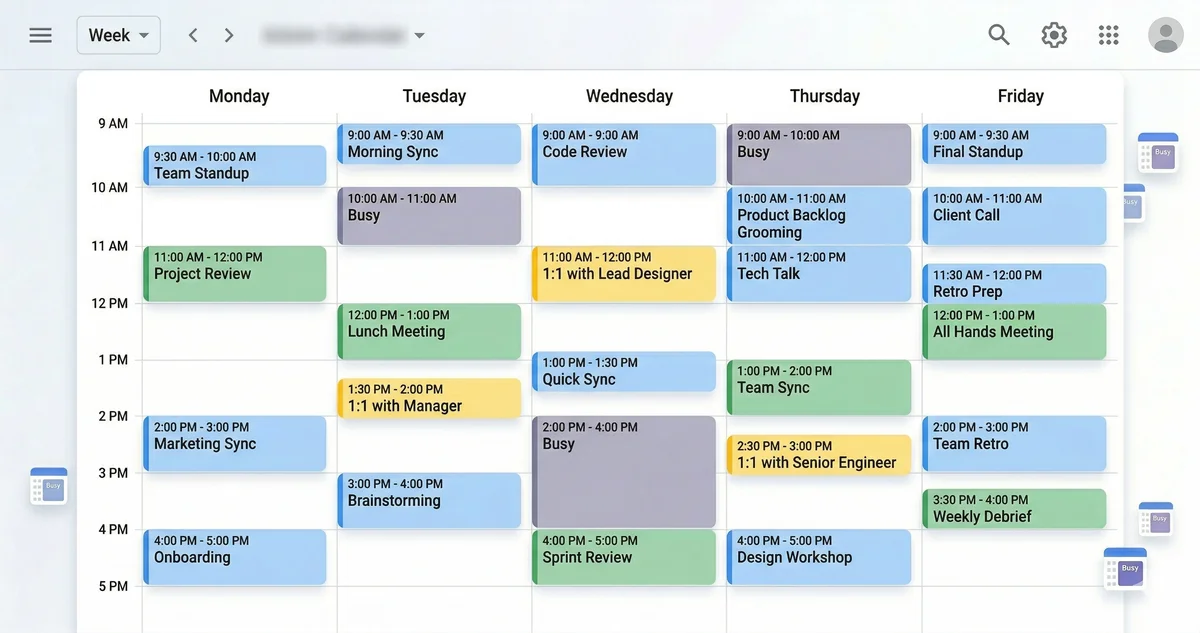
Your work calendar shows a blocked time labeled “Busy” during each personal event. They can’t see what it is, where it is, who’s attending, or any details.
When they use Outlook’s Scheduling Assistant or Google’s “Find a time” to schedule with you, they see 2–3 PM on Tuesday as unavailable and won’t suggest that slot.
What stays private
The original event title, description, location, and attendee list never leave your personal calendar. Only the time block and “Busy” label sync to your work calendar. Edit a personal event and Hetk updates the Busy block in Outlook automatically.
Privacy controls in detail
Hetk offers privacy controls for synced events:
Full details (default): Event title, description, and location appear in the work calendar. Attendees never travel with a copy. Use this for shared work events or if you’re comfortable with transparency.
Replace the details with “Busy”: Everything is stripped except duration. The event shows as “Busy” with no other information. Best for personal appointments you want to block time for.
Flag the copy as private: The provider’s private flag is set (Google
visibility: private, Microsoftsensitivity: private, iCloudCLASS:PRIVATE), so people your work calendar is shared with see only “Busy”.
The two settings are independent: turn on both if you want.
Strategy 2: Manual time blocking
Some people manually create “Busy” or “Hold” blocks on their work calendar whenever they add a personal event. This works for a handful of events, but has problems:
- Miss one block and you get double-booked
- A personal event moves, but you forget to update both calendars
- Cancel a personal event and the work block stays unless you delete it manually
- Every personal event requires effort twice
Strategy 3: Calendar overlay (view only)
Add your personal calendar account to your work calendar app. iOS and Android support multiple accounts, so you can see both locally.
The catch: only you see both. Your coworkers still can’t see your personal availability when scheduling meetings. It helps you avoid double-booking yourself, but doesn’t help them.
Comparison
| Hetk sync | Manual blocking | Calendar overlay | |
|---|---|---|---|
| Coworkers see availability | Yes | Yes | No |
| Event details private | Yes | Yes (if careful) | N/A |
| Updates automatically | Yes | No | No |
| Deletes automatically | Yes | No | No |
| Cross-provider | Yes | Yes | Depends |
| Effort per event | None | 2–3 min | None |
Tips for organizing calendars
Keep contexts separate. All personal events in one calendar, all work in another. Don’t mix them within a single calendar. It makes sync much simpler and reduces the risk of accidentally exposing sensitive data.
Hetk syncs 1 month back and 12 months forward. The window rolls forward with today’s date, so upcoming work comes into range as it approaches. Changes to events more than a few weeks ahead can take a few hours to arrive. If you need more history, tell us.
One-way (personal → work) is usually enough. Most people don’t need work events in their personal calendar. It creates clutter and might expose work info on personal devices. If you do need bidirectional sync, enable Replace the details with “Busy” in both directions.
Label the Busy blocks if you sync more than two calendars. Once you’re feeding several calendars into one, every event reads “Busy” and you can’t tell them apart. A title template like [Personal] {{original_title}} prefixes each one by source, so “[Personal] Busy” and “[Client] Busy” stay distinct without exposing any detail.
Test before syncing everything. Create a test event, sync just that one, and verify coworkers can’t see details.
If you leave the job, disable the sync. Busy blocks already synced will stay (they don’t auto-delete), but future events won’t sync. Clean them up manually if needed.
Getting started
Hetk’s Personal plan ($15/year) supports unlimited calendars with up to 3 sync pairs and includes a 21-day free trial. Setup takes 2 minutes:
- Go to app.hetk.io
- Connect your personal and work accounts
- Select which calendars to sync
- Choose one-way sync (personal → work)
- Enable Replace the details with “Busy”
- Done
Personal events appear as Busy blocks on your work calendar within seconds (within minutes if your personal calendar is iCloud).
Troubleshooting
Coworkers still see event details
Replace the details with “Busy” is enabled, but coworkers can still see your event title or description.
Verify it’s enabled in Hetk’s sync settings. If it is but details are still visible, the event synced before you turned on privacy. Delete the old event from your work calendar and create a new one in your personal calendar. The next sync will apply Replace the details with “Busy” correctly.
I deleted a personal event, but it’s still Busy on my work calendar
Hetk detected the deletion, but your calendar app might not have refreshed. Try refreshing:
- Outlook web: Settings > Refresh
- Google Calendar: refresh the page (Ctrl+R or Cmd+R)
- Mobile: close and reopen the app
If it’s still there, your calendar app may be cached. Manually delete it from your work calendar. Network issues during sync can cause this.
Privacy settings didn’t apply to old events
Replace the details with “Busy” only applies to future syncs, not retroactively. To fix this:
- Delete old Busy blocks from your work calendar that you want to resync
- Enable Replace the details with “Busy” in Hetk
- Edit existing events in your personal calendar to trigger re-sync
- New events will sync with privacy applied
Or manually update old events in your work calendar to remove details.
Frequently asked questions
Will my boss see my personal events?
No. With Replace the details with “Busy” enabled, your boss and coworkers see only “Busy” blocks. They can’t see the title, description, location, attendees, or any details. They just know you’re unavailable.
What if I change a personal event?
Edit a personal event and Hetk automatically syncs the change. Move it from 2–3 PM to 4–5 PM, and the Busy block moves too. Privacy controls still apply.
Can I sync both directions privately?
Yes, but most people don’t need it. You can set bidirectional sync with Replace the details with “Busy” on both sides. This keeps work details private on your personal devices, but adds clutter to your personal calendar. Most people use one-way sync (personal → work) and manage their personal calendar separately.
How do scheduling tools read “Busy” blocks?
Outlook’s Scheduling Assistant and Google’s “Find a time” correctly show you as unavailable during events synced with Replace the details with “Busy”. They see the time is blocked but not the event title or details. A colleague using “Find a time” will see “Busy” for those hours and pick a different slot.