You’ve signed up for Hetk, clicked “Continue with Microsoft,” and instead of the usual permissions screen you see this:
Needs admin approval Hetk Calendar Sync needs permission to access resources in your organization that only an admin can grant.
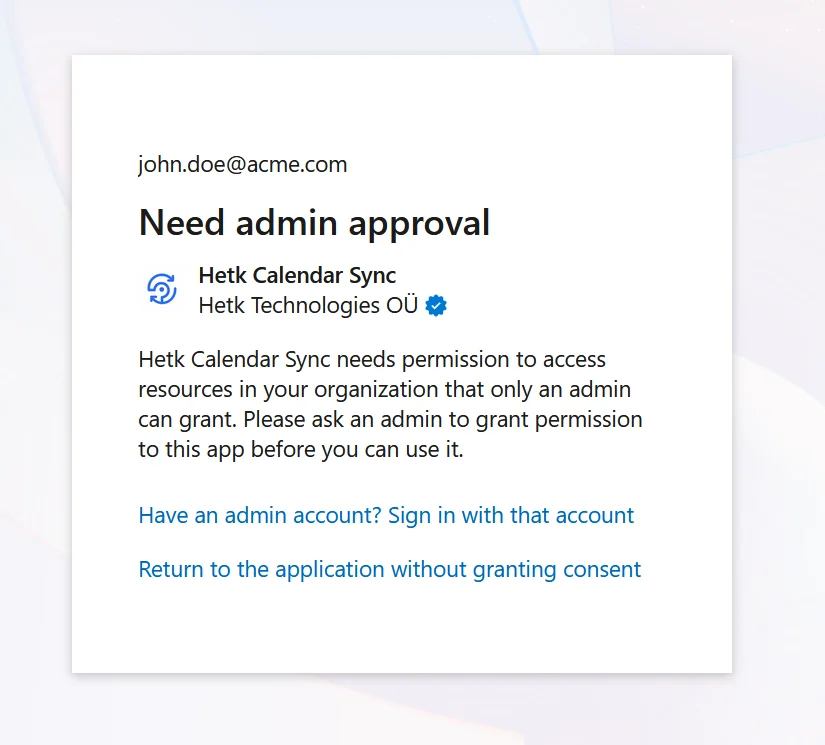
This isn’t a bug in Hetk. It’s a security setting in your organization’s Microsoft Entra ID (formerly Azure Active Directory). Here’s what’s happening and how to fix it.
Why does “admin approval required” appear?
Microsoft lets IT admins decide which third-party apps can reach company data. Microsoft Entra ID gives admins a few built-in consent policies, and most organizations pick one of these:
- Only admins can approve apps — the strictest option, and the most common at security-conscious companies. To connect any third-party app, users have to ask IT first.
- Users can approve apps from verified publishers only — a middle ground. Hetk is a verified publisher, so Microsoft has confirmed who we are. Even so, some companies narrow this down to an approved list of vendors.
- Users can approve any app — the most open setting. It’s less common at work, because it carries more risk.
When either of the first two policies is on, users can’t approve Hetk on their own. An admin approves it once. After that, everyone in the organization connects without seeing the approval screen again.
This is normal across the industry. Have you used Calendly, Reclaim.ai, or another calendar tool with a work Outlook account? Then you’ve probably met this screen before. Microsoft adds the check so people can’t hand access to a malicious app by accident.
What permissions does Hetk request?
Hetk asks for two Microsoft Graph permissions. Both are delegated, so they act on behalf of you, the signed-in user — not the whole organization:
| Permission | What it does | Why it’s needed | Admin consent required? |
|---|---|---|---|
| Calendars.ReadWrite | Read and write events on the user’s calendars | Hetk needs this to read your events for sync, and write synced events from other calendars | No (by Microsoft’s default) |
| User.Read | Read the user’s basic profile (name, email) | Hetk needs your email to identify which calendar to sync to | No |
By default, neither permission needs admin consent. So the block isn’t about the permissions — it comes from your organization’s tenant-level policy.
Hetk does NOT request:
- Organization-wide calendar access
- Mail access
- File or document access (OneDrive, SharePoint)
- Administrative access
- Access to other users’ calendars
- Organization-wide settings or data
Hetk’s access is scoped to the individual user. Your coworkers’ calendars remain private unless you explicitly share them.
Delegated vs application permissions: what’s the difference?
Microsoft Graph splits permissions into two kinds:
Delegated permissions (what Hetk uses): the app acts on behalf of the signed-in user, and only on that user’s own data.
Application permissions: the app acts on its own, with no user signed in. These always need admin consent and grant much broader access.
Hetk uses delegated permissions, so you have to sign in. Hetk can only reach calendars you can already reach yourself.
How can your IT admin approve Hetk?
There are two ways to do it. Both take under a minute.
Option A: Direct admin consent link
Your IT admin opens this link in their browser (signed in as admin):
https://login.microsoftonline.com/common/adminconsent?client_id=8dd90edb-c881-459a-ac84-2a1fee8c5c94
They see the permissions, click Accept, and Hetk is approved for everyone in the organization.
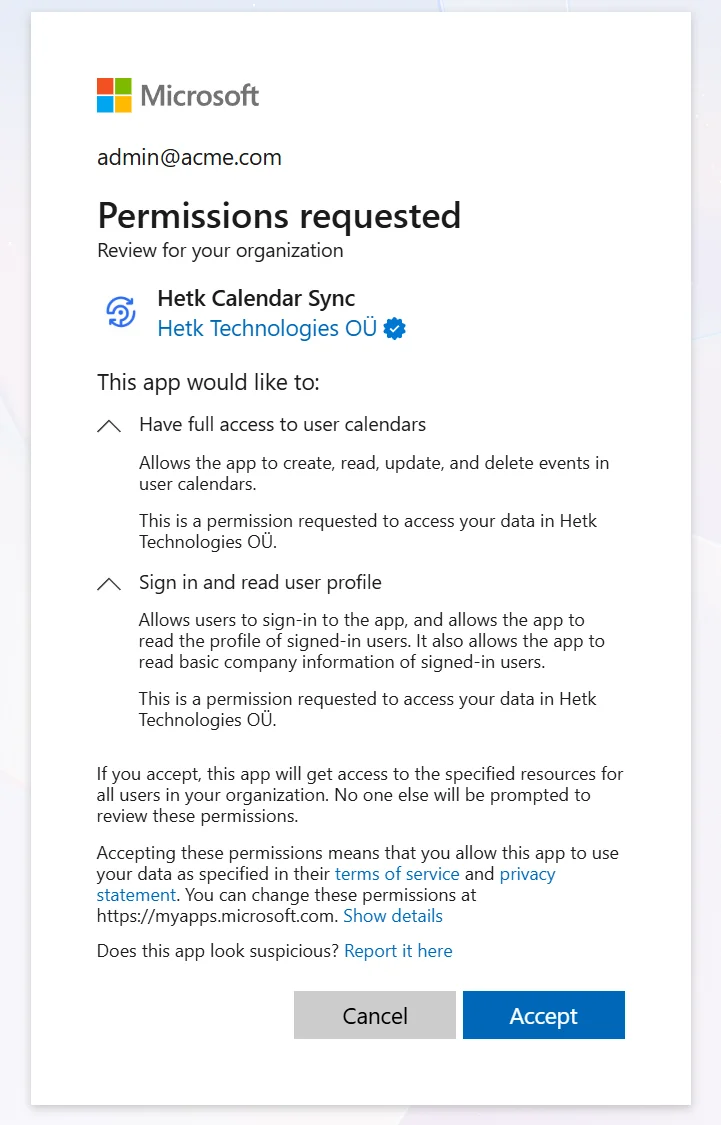
Option B: Approve through the Entra admin center
- Go to Entra admin center
- Navigate to Identity > Applications > Enterprise applications
- Search for Hetk Calendar Sync
- Click Permissions in the left sidebar
- Click Grant admin consent
After approval, any user in the organization can connect their Outlook calendar to Hetk without seeing the admin approval screen again.
What if you don’t have access to an admin?
- Forward the consent link above to your IT department with a note
- Submit an IT request through your company’s ticketing system (ServiceNow, Jira Service Desk, etc.)
- Check if your org has a self-service app approval flow
In the meantime, if you have a personal Microsoft or Google account, sign into Hetk with that and connect your personal calendars.
Is Hetk safe for your IT team to approve?
For IT administrators evaluating Hetk, here’s what matters:
- Verified publisher: Microsoft has confirmed our identity through the Cloud Partner Program
- Minimal permissions: We only request calendar read/write and basic profile access
- Delegated access: Hetk acts on behalf of individual users, not organization-wide
- Domain-verified policy: Set a single DNS TXT record at
_hetk.<your-domain>to force every sync leaving your domain to be marked private. No Hetk admin login, no extra OAuth scope. See domain-verified privacy policy. - Data handling: Calendar data is encrypted in transit and at rest. See our privacy policy and security overview
Security questions? Reach out to [email protected].
Can IT lock privacy across your whole domain?
Admin consent only decides who in your tenant can sign in to Hetk. It doesn’t limit what those users then sync, or what details land on the other calendar. If you want a second layer of control, Hetk can read a DNS TXT record at _hetk.<your-domain> and apply a domain-wide rule to everything it writes.
Set the record to v=hetk1; policy=private and every sync from a @yourdomain user goes out private. The title becomes “Busy”, and the description, location, and attendees are cleared. When the policy says so, it overrides each user’s own privacy setting. The record is provider-agnostic, so it covers your Google Workspace and Microsoft 365 users alike.
The two layers compose:
- Admin consent controls who can connect Hetk
- Domain policy controls what Hetk is allowed to write once they are connected
The policy record is set the same place you set DMARC and SPF — no Hetk admin portal, no per-user dashboard, no extra OAuth scope. Setup and verification live at Hetk Policy Setup; the full schema, failure modes, and what users see is documented on the admin policy page.
Troubleshooting
Admin approval link doesn’t work
Admin got an error when using the direct consent link.
Possible causes:
- Not signed in with an admin account (check that they’re using admin credentials, not a regular user account)
- Wrong tenant (if your company uses multiple Microsoft tenants)
- App already approved (check the Entra admin center to verify)
- Browser issue (try private/incognito mode or clear cookies)
Can’t find “Grant admin consent” button
Admin can’t find Hetk in Entra’s Enterprise applications list or the “Grant admin consent” button.
Possible causes:
- Hetk hasn’t been registered yet: The app only appears after someone signs in with their Microsoft account. Have a user attempt to sign in first (they’ll see the approval screen). This registers Hetk.
- Search issue: Try searching for just “Hetk” or the client ID (8dd90edb-c881-459a-ac84-2a1fee8c5c94)
- Insufficient permissions: The Permissions tab may be hidden if the admin doesn’t have Global Administrator or Application Administrator role
Have an admin with the right role sign in and try again. Contact Hetk support with your tenant ID if still stuck.
“Tenant policy blocks this app”
Approval went through but users see “Hetk is blocked by your organization’s policies.”
Possible causes:
- Conditional Access policy: Blocks certain apps or requires additional authentication
- Cloud App Security: Microsoft Defender for Cloud Apps may be blocking it
- Intune policy: Mobile device management may block Hetk on mobile
Admin should check:
- Conditional Access policies in Entra (Identity > Conditional Access)
- Defender for Cloud Apps policies
- Intune app protection policies
Contact Hetk support with error details for specific guidance.
Frequently asked questions
Does consent expire?
No. Once approved, consent stays active unless:
- The admin explicitly revokes it (Entra admin center > Enterprise applications > Remove)
- The app is uninstalled from the tenant
- Your organization resets Entra policies
Approval is permanent until revoked. Users can connect without seeing the approval screen again.
Can the admin revoke access later?
Yes, the admin can revoke access anytime:
- Go to Entra admin center
- Navigate to Identity > Applications > Enterprise applications
- Search for Hetk Calendar Sync
- Click Permissions in the left sidebar
- Click Remove admin consent or Delete
After revocation:
- Existing sync relationships continue working (they already have refresh tokens)
- New users will see the approval screen again
- Existing syncs gradually stop working as tokens expire (within weeks)
Is there a way for users to self-approve?
No. If your organization requires admin approval, users can’t bypass it. Microsoft designed this to prevent security breaches.
Users can:
- Contact IT and request approval
- Use a personal Microsoft account (if allowed)
- Wait for the admin to approve
Can I be selective about which users can use Hetk?
Admin consent is organization-wide. Once it’s approved, every user can sign in. Standard approval won’t let you limit it to certain people or departments.
You can:
- Use Conditional Access policies to require additional authentication
- Block Hetk for specific departments using Defender for Cloud Apps
- Revoke approval entirely
Contact Hetk support for help with granular access controls.
Still stuck?
If you’re still seeing the approval screen or running into issues granting consent, reach out to [email protected].