If you use Google for personal and Outlook for work (or vice versa), you’ve probably been double-booked. Someone schedules a work meeting during your personal time because they can’t see your other calendar. This guide covers three ways to sync them.
Option 1: Subscribe to a calendar (read-only)
Both Google and Outlook let you subscribe via ICS URL for a read-only overlay. Simplest option if you just need to see events without editing or syncing back.
Google → Outlook
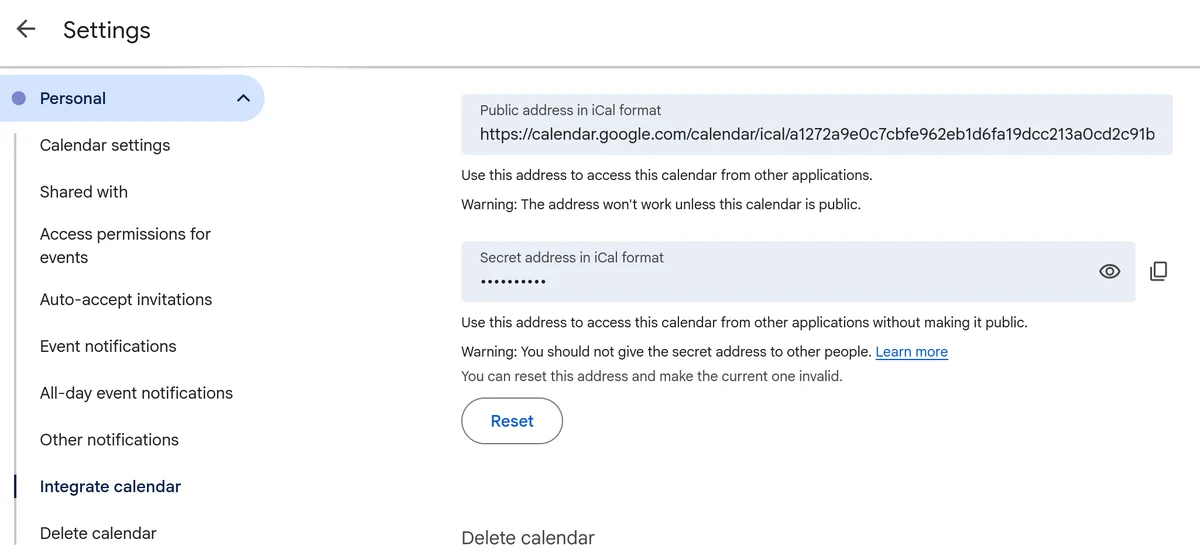
- In Google Calendar, go to Settings > [Calendar name] > Integrate calendar
- Copy the Secret address in iCal format
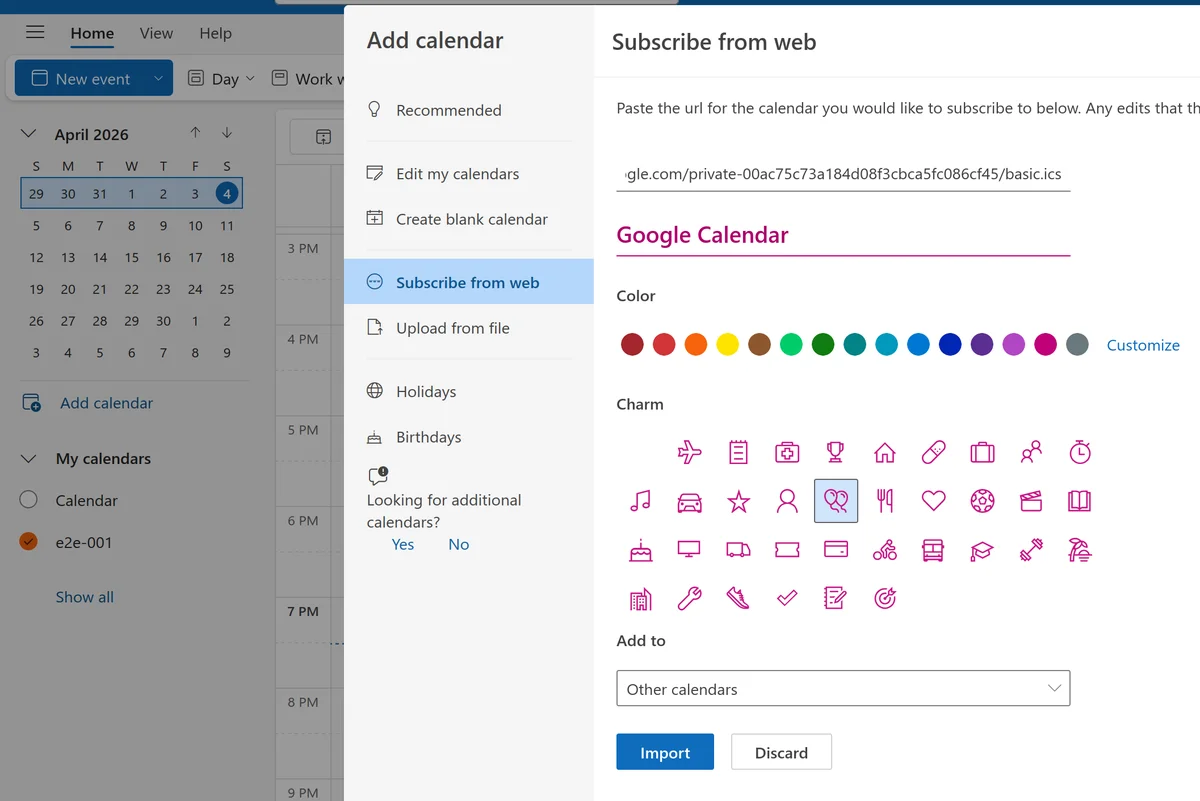
- In Outlook, go to Add calendar > Subscribe from web
- Paste the URL and click Import
Tips:
- Outlook auto-refreshes every 12–24 hours. Manually refresh if needed
- Subscribed calendars appear separately, so you can toggle visibility
- On Outlook mobile, subscriptions refresh every 30 minutes to 2 hours
Outlook → Google
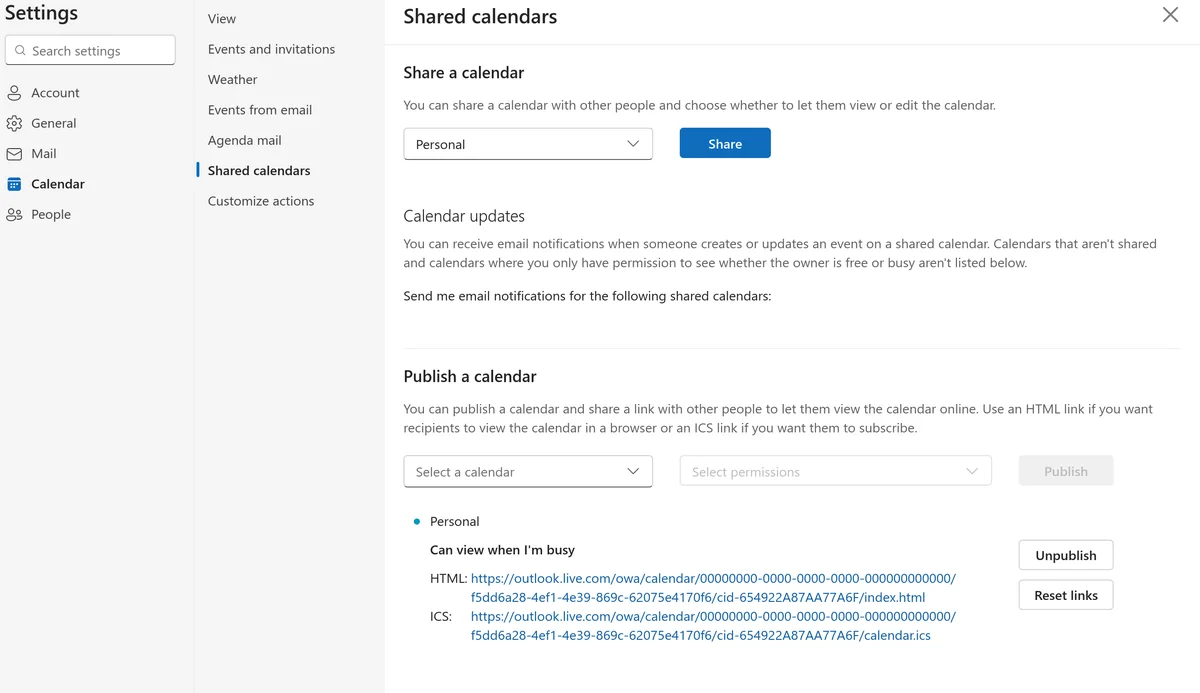
- In Outlook, go to Settings > Calendar > Shared calendars
- Under Publish a calendar, select the calendar and choose Can view all details
- Copy the ICS link
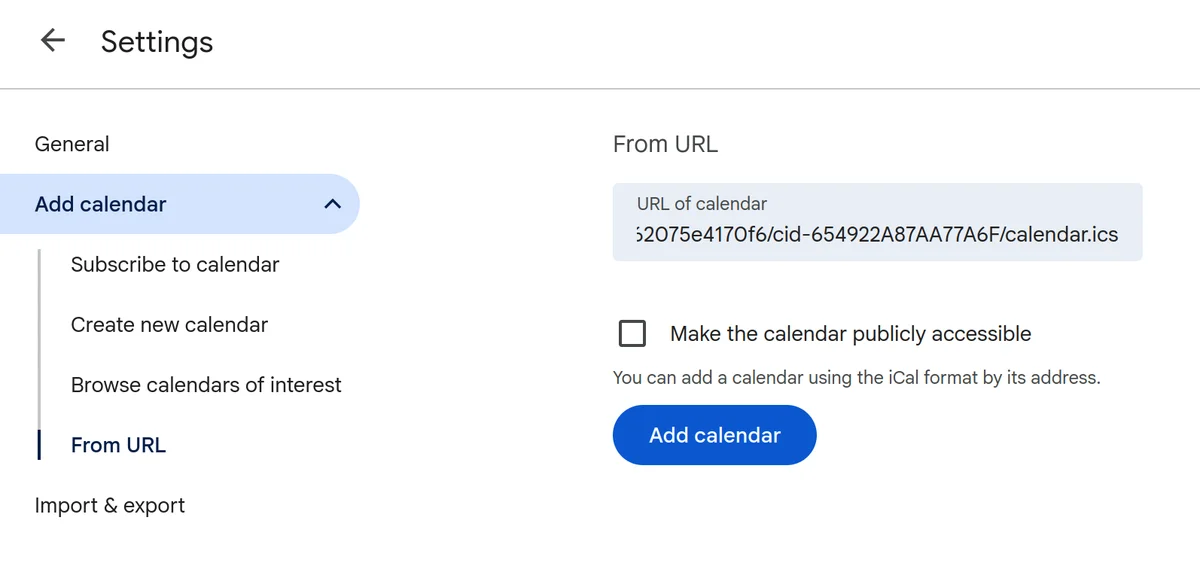
- In Google Calendar, click + > From URL and paste it
Tips:
- Outlook’s published URL is permanent. Google continues receiving updates as long as the calendar stays shared
- Revoke sharing in Outlook and Google stops receiving updates
- Google refreshes Outlook ICS subscriptions slowly (12–24 hours)
Limitations
- Read-only: you see events but can’t edit them
- Slow updates: 12–24 hours between refreshes
- No privacy controls: all details visible or nothing
- One direction only: set up both sides separately for two-way visibility
- No bi-directional sync: changes don’t flow back
- Limited on mobile
Good for a quick overview, not real sync. Works for viewing someone else’s availability or read-only calendars like holidays.
Option 2: Use Hetk for automatic two-way sync
Hetk connects to Google and Outlook via their official APIs and syncs in real time. Unlike ICS subscriptions, Hetk uses webhooks and polling to keep calendars synchronized with minimal latency.
Setup
- Go to app.hetk.io and sign in with your Google account
- Add your Microsoft account
- Select which calendars to sync
- Choose one-way or bi-directional sync
- Configure privacy settings (optional)
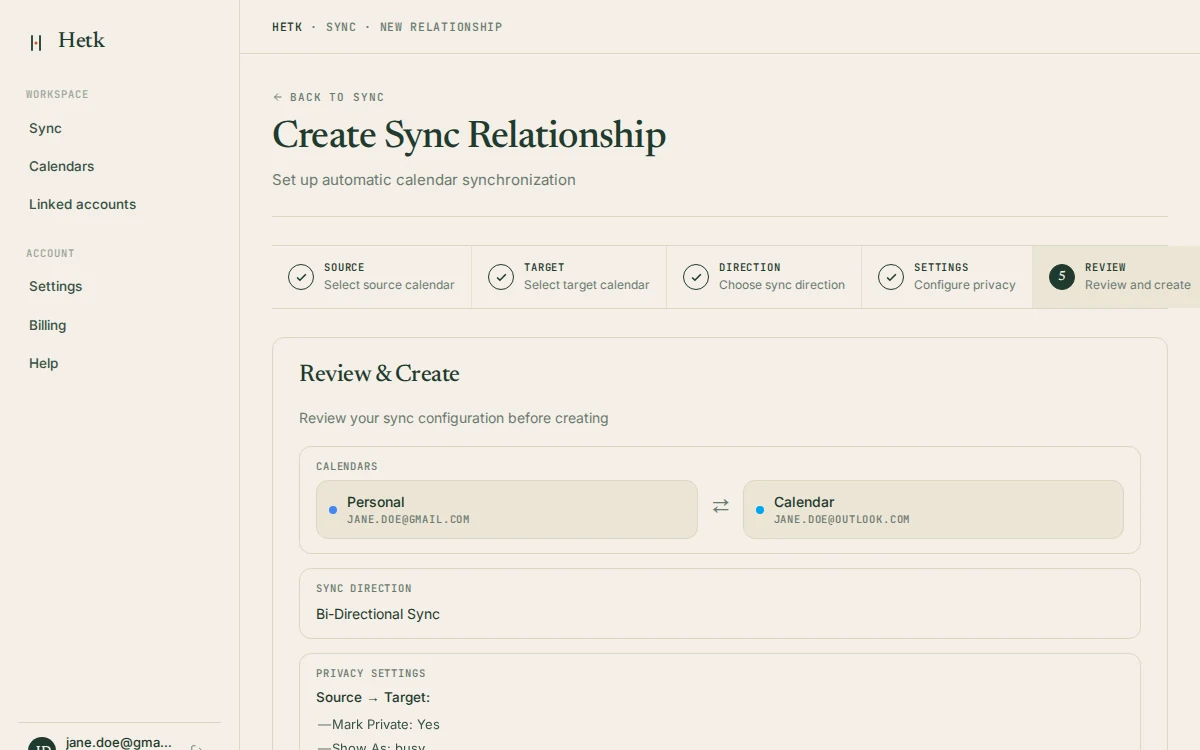
Takes about 2 minutes. Events sync automatically within seconds. Create, update, or delete an event and the change appears in the other calendar almost instantly.
How syncing works
Hetk uses webhooks and polling:
- Google → Outlook: Google sends webhooks immediately, Hetk syncs within 1–3 seconds
- Outlook → Google: Hetk polls every 30–60 seconds, updates appear within a minute
- Conflict resolution: If the same event is edited in both calendars simultaneously, the most recent change wins
- Deletion handling: Deleting an event in the source removes it from the synced destination. Deleting from the destination recreates it on next sync (source is authoritative)
What you get
- Real-time sync: changes appear in seconds
- Bi-directional: edit in either calendar and changes flow back
- Privacy controls: show full details, just “Busy”, or strip all content
- Identity transform: synced events show your target calendar’s email as organizer
- Duplicate detection: Hetk won’t create duplicates if a meeting exists in both
- Sync window: Hetk syncs 3 months back and 12 months forward
Privacy features in detail
When you enable Mark as Private, Hetk strips sensitive information:
- Event title becomes “Busy”
- Event description and location removed
- Attendee list hidden
- Meeting URL removed
Your coworkers see you’re unavailable but can’t see what the appointment is. Free/busy scheduling tools correctly show you as busy.
Pricing
Personal plan: $15/year for unlimited calendars with up to 3 sync pairs. Professional plan: $50/year for unlimited calendars with up to 8 sync pairs.
Option 3: Manual ICS export/import
Export events as an .ics file and import them into the other calendar. Manual, one-time approach useful for moving events, not for ongoing sync.
Steps
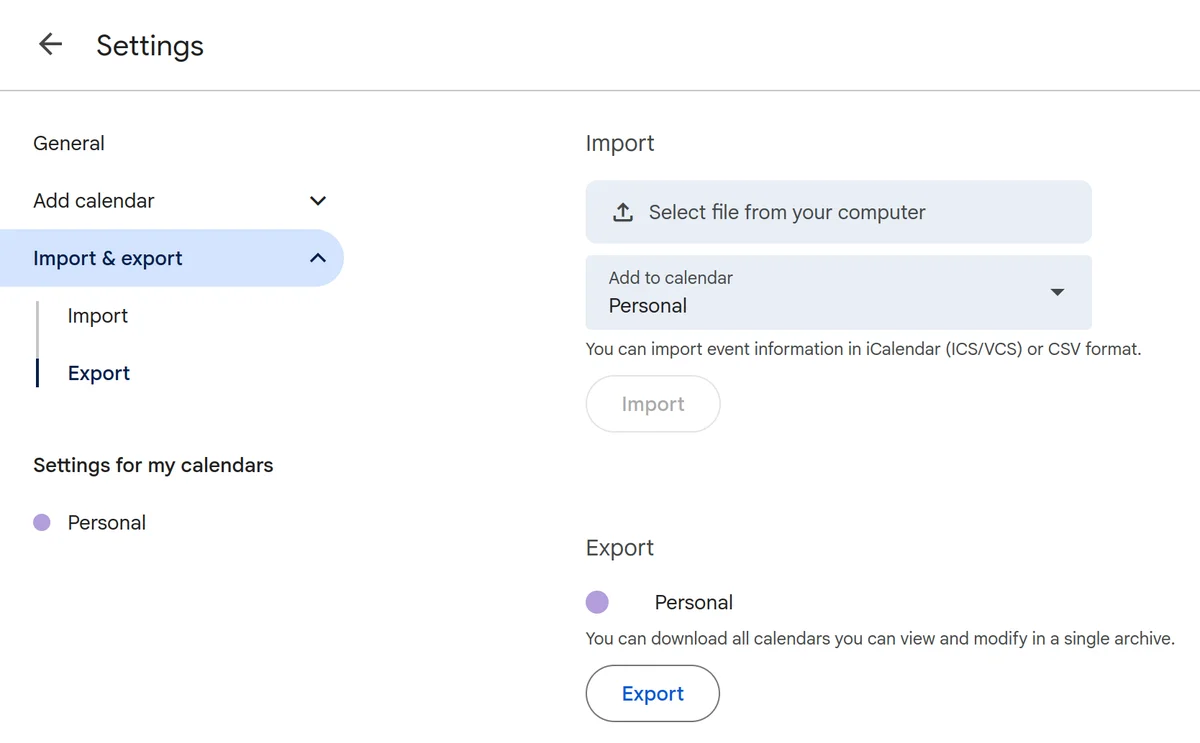
- In Google Calendar, go to Settings > Import & export > Export
- Download the .ics file
- In Outlook, go to Add calendar > Upload from file
- Select the .ics file
Outlook will import all events and display a progress indicator.
Tips:
- Filter events before export by opening a specific calendar
- Outlook asks which calendar to import into
- Large files (1,000+ events) may take a few minutes
- Outlook mobile doesn’t support import. Use the web or desktop version
Limitations
- One-time snapshot: repeat every time events change
- No sync: changes after export don’t flow to Outlook
- Duplicates: importing the same file twice creates duplicates
- No deletions: source deletions don’t remove imported copies
- No privacy controls: all details are preserved
- Manual effort: you remember to re-export and re-import
Only useful for one-time migrations, not ongoing sync. Manual effort becomes impractical if events change frequently.
Which option should you use?
| Need | Best option |
|---|---|
| Quick read-only view | ICS subscription |
| Real-time two-way sync | Hetk |
| One-time migration | ICS export/import |
For most people using both calendars daily, Hetk saves time and prevents double-booking. Try the 21-day free trial.
Troubleshooting
ICS subscription doesn’t refresh
Events added to Google or Outlook aren’t appearing in the subscribed view.
ICS subscriptions refresh on the recipient calendar’s schedule (12–24 hours). Force a refresh by:
- In Google Calendar, click the three-dot menu next to the subscribed calendar and select “Refresh”
- In Outlook, click the calendar and select “Refresh” (not available in all versions)
- Manually re-add the calendar by copying the URL again
If it never refreshes, check the source calendar’s sharing settings in the original service.
Outlook not showing Google Calendar events
You’ve added a Google ICS subscription to Outlook, but events aren’t appearing.
Possible causes:
- Wrong URL format: use
https://from Google, notwebcal:// - Calendar is private: Google won’t generate an ICS URL for private calendars. Share it first
- Web vs desktop: sometimes they handle subscriptions differently. Try both
- Subscription failed silently: check Settings > Calendar > Shared calendars for an error. Remove and re-add with a fresh URL
Confused about sync direction
You’ve set up subscriptions in both directions and changes aren’t syncing back.
ICS subscriptions are one-way and read-only. If you subscribe to Google in Outlook, you see Google events but editing or deleting them in Outlook doesn’t affect Google. Subscriptions in both directions give a two-way view, not sync. Changes don’t flow back.
For true two-way sync, use Hetk.
Frequently asked questions
How long does ICS sync take?
ICS subscriptions refresh every 12–24 hours depending on the provider. Google is faster (12–18 hours), Outlook slower (up to 24 hours). You can’t speed this up. For real-time updates, Hetk syncs within seconds.
Can I edit Google events from Outlook?
No, not with ICS subscriptions. They’re read-only. Editing a subscribed event gives an error. To edit, go to the original calendar. With Hetk, you can edit in either calendar and changes flow back automatically.
Does Hetk sync recurring events?
Yes. When you sync a recurring event, the entire series syncs, not just individual instances. Edit one instance and Hetk treats it as a separate event. Modify the entire series and Hetk syncs the full series change.
What happens to events I manually moved or edited?
If you manually edit a synced event, Hetk detects the change and syncs it. If you edit the same event in both calendars simultaneously, the most recent change wins based on timestamps.