
Apple’s iCloud Calendar and Google Calendar don’t sync natively. (If you use the Apple Calendar app on an iPhone, iPad or Mac, that is your iCloud calendar — the two names mean the same thing here.) There is a free, built-in way to see your iCloud events inside Google Calendar — two steps, about two minutes, no software. It is read-only: the events show up, but you can’t edit them from Google, and changes take 12–24 hours to appear.
The free method is first. If you need events made in either calendar to show up in both, that’s covered further down.
Option 1: Add your iCloud calendar to Google Calendar (free, read-only)
This uses iCloud’s public calendar link together with Google Calendar’s From URL option.
Step 1: Copy your iCloud calendar’s public URL
- Open icloud.com/calendar and sign in
- Click the share icon next to the calendar you want to share
- Tick Public Calendar
- Copy the URL Apple displays
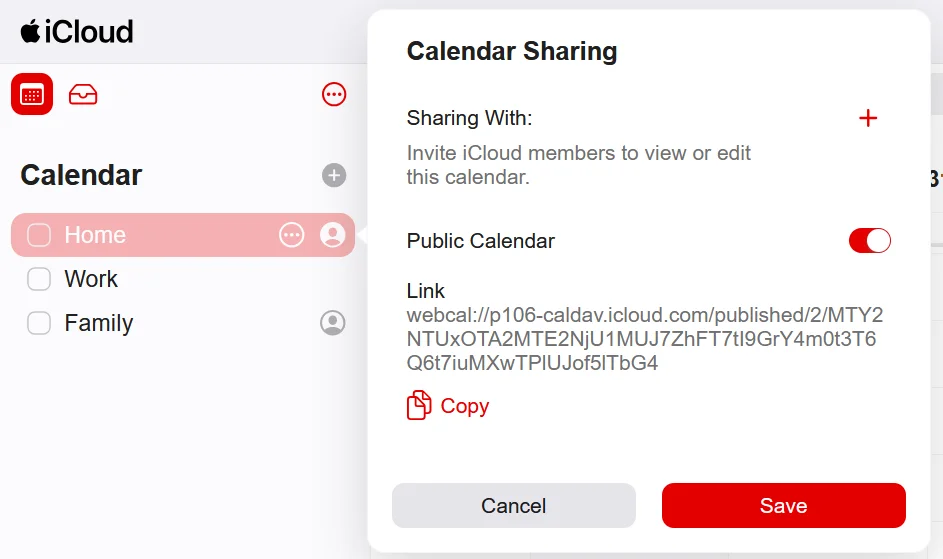
Step 2: Add that URL to Google Calendar
- Open Google Calendar
- Next to Other calendars in the left sidebar, click +
- Choose From URL
- Paste the URL and click Add calendar
Your iCloud events appear in Google Calendar shortly afterwards.
What this gives you, and what it doesn’t
It is a subscription, not a sync. Specifically:
- Read-only. You can see iCloud events in Google Calendar but can’t edit them there. Delete one in Google Calendar and it stays in iCloud
- 12–24 hour refresh. Google decides when to re-fetch the feed. A change you make in iCloud will not show up promptly
- One direction only. Events you create in Google Calendar never reach iCloud
- The calendar must be Public. Anyone holding the URL can read it. Apple’s link is long and unguessable, but it is not access-controlled, so this is a poor fit for a calendar with private events
- No privacy controls. Titles, descriptions and attendees are exposed exactly as written
For a calendar of fixed, non-sensitive events — a class timetable, a fixture list, a shared family schedule — this is genuinely all you need, and it costs nothing.
Why don’t iCloud and Google Calendar sync natively?
Apple and Google both let you view an external calendar. Neither of them syncs.
iOS Calendar app + Google account: shows your Google events on your iPhone, but events you create in the iOS Calendar app (which stores them in iCloud) don’t appear in Google Calendar.
Google Calendar + iCloud ICS subscription: the method above — read-only, slow to refresh, no privacy controls.
Neither one gives you two-way sync between the two calendars. Nothing built into either platform does.
Option 2: Sync iCloud and Google Calendar both ways with Hetk
If the read-only limits above are the problem — you want to create an event on either side and have it appear on the other, with control over what is exposed — that needs a sync service.
Hetk connects to iCloud over CalDAV — the open standard Apple uses for calendaring — and to Google Calendar through the Google Calendar API. After setup, events sync between them on their own.
Setup
- Go to app.hetk.io and sign in with your Google account
- Add your Apple iCloud account using an app-specific password (generated at appleid.apple.com)
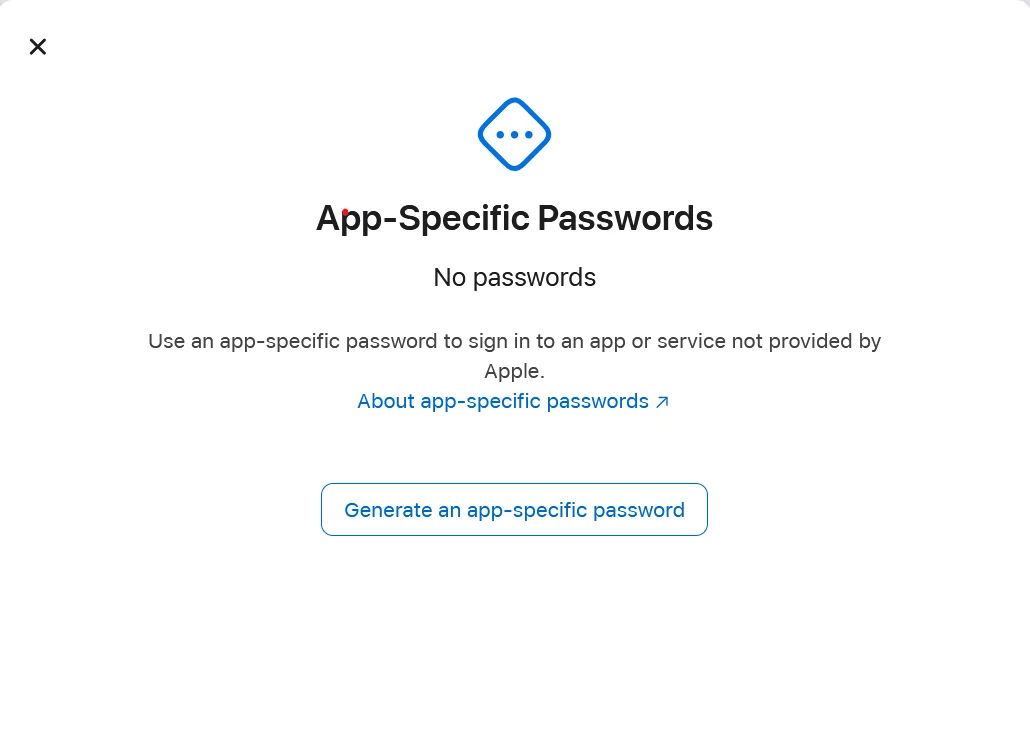
To generate an app-specific password, go to appleid.apple.com, sign in, and open Security > App-Specific Passwords. Generate one for Hetk. Apple creates a unique, random password that works only for Hetk and only for iCloud calendar access.
- Select which iCloud and Google calendars to sync (if you have multiple iCloud calendars, you can sync them individually)
- Choose sync direction (one-way if you only want iCloud → Google or Google → iCloud, or bi-directional if you want events made in either calendar to appear in the other)
- Configure privacy settings (optional)
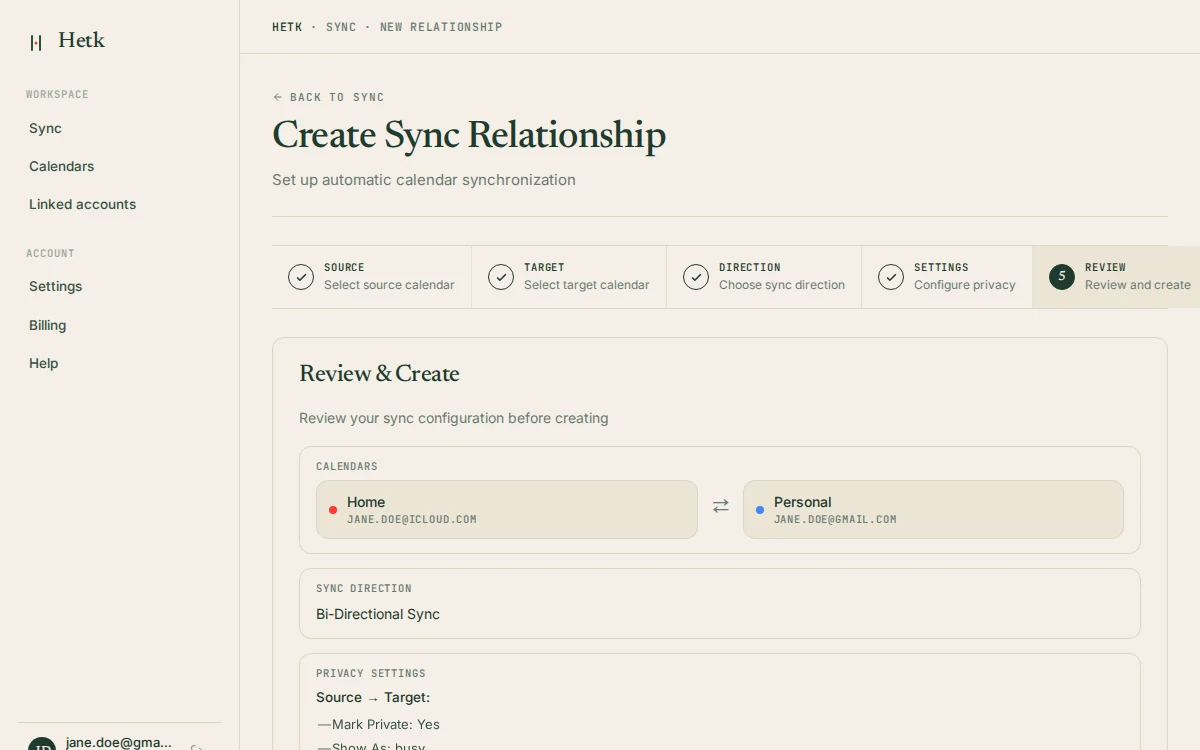
Setup takes about 3–5 minutes total. You’ll immediately start seeing iCloud events in Google Calendar and vice versa.
How does iCloud sync work?
Apple doesn’t offer webhooks for calendar changes, but Google does. So Hetk polls iCloud to stay in sync.
- Google → iCloud: Changes in Google Calendar and Outlook usually arrive within seconds, through push notifications. A safety check runs every 15 minutes in case a notification is missed.
- iCloud → Google: Apple iCloud has no push. Hetk checks iCloud every 5 minutes, and less often for a calendar that has been quiet.
In practice, iCloud → Google takes a few minutes, while Google → iCloud is nearly instant. The gap comes from Apple’s CalDAV design: there’s no push, so that side has to be polled.
Privacy controls
You can configure each sync relationship independently:
- Replace the details with “Busy” — event title is replaced with “Busy”, description and location are completely removed
- Flag the copy as private — the provider’s private flag is set, so people the calendar is shared with see only “Busy”
- Title templates — label synced events with a pattern you write, like
[iCloud], so you can tell them apart at a glance
What about the app-specific password?
Apple doesn’t support OAuth for calendar access. Instead, you generate an app-specific password in your Apple ID settings. This password:
- Only grants access to iCloud services (calendar, contacts, mail). Can’t access Notes, Photos, or other iCloud apps
- Can’t be used to sign in to your Apple account. Only works with calendar and email
- Can’t make purchases or change account settings. Even if someone gets it, they can’t buy anything or alter your account
- Can be revoked anytime from appleid.apple.com. One click to delete it
- Is unique to Hetk. Each app-specific password is different, so if one is compromised, only that app is affected
This is actually more secure than your main Apple ID password, which grants full access to your entire account.
Option 3: Add Google Calendar to iCloud on your iPhone
A third option, if what you actually want is your Google events visible in the iOS Calendar app:
- Go to Settings > Apps > Calendar > Calendar Accounts > Add Account > Google
- Sign in with your Google account (you’ll be prompted to allow access to your calendars)
- Enable Calendars in the account settings
- Wait for the calendars to sync (usually takes a few seconds to a minute)
This shows Google Calendar events in the iOS Calendar app alongside your iCloud calendars. Like the URL method, it is a view rather than a sync: events you create in an iCloud calendar stay in iCloud and don’t appear in Google Calendar, and there are no privacy controls.
How do the three options compare?
| Option 1: public URL subscription | Option 3: iOS Google account | Option 2: Hetk | |
|---|---|---|---|
| Cost | Free | Free | From $15/year |
| iCloud → Google | Yes (read-only, 12–24h delay) | No | Yes (checked every 5 minutes, less often if quiet) |
| Google → iCloud | No | No | Yes (usually within seconds) |
| Bi-directional | No | No | Yes |
| Privacy controls | No | No | Yes |
| New events on either side reach the other | No | No | Yes |
| Calendar stays private | No (must be Public) | Yes | Yes |
Summary
For a read-only view of iCloud events inside Google Calendar, the public URL method above is free and takes two minutes. Its real costs are the 12–24 hour refresh and having to make the calendar public.
For a read-only view of Google events on your iPhone, adding the Google account in iOS settings is the simplest approach.
If you need events flowing both ways with privacy controls, that requires a sync service. Hetk’s Personal plan at $15/year covers both calendars, with a 21-day free trial.
Troubleshooting
App-specific password not working
Problem: You’ve generated an app-specific password and entered it in Hetk, but you get an error like “Invalid credentials” or “Authentication failed.”
Solutions:
- Verify 2FA is enabled: Apple requires two-factor authentication on your account before you can create app-specific passwords. Check that 2FA is active at appleid.apple.com
- Double-check the password: Paste it carefully. It should be 16 characters with hyphens. Any typo causes authentication to fail
- Generate a new password: If the first one doesn’t work, delete it from appleid.apple.com and create a fresh one
- Check account lockout: If you’ve failed authentication too many times, Apple may have temporarily locked your account. Wait 15 minutes and try again
- Verify the password is recent: Older app-specific passwords sometimes have issues. Generate a new one and try again
iCloud 2FA blocking Hetk
Problem: You see a message like “Your account requires additional authentication” even with an app-specific password.
Solution: This usually means your account is in a restricted state (possibly due to a login from a new location or device). Sign in to icloud.com directly on your iPhone or computer. Apple will prompt you to verify your identity. After you verify, try Hetk again. The account restriction should be lifted.
CalDAV polling delays between iCloud and Google
Problem: You’ve created an event in iCloud and it’s taking much longer than expected to appear in Google Calendar.
Apple iCloud has no push. Hetk checks iCloud every 5 minutes, and less often for a calendar that has been quiet.What to check:
- Slow iCloud response: Apple’s CalDAV servers sometimes respond slowly. This is on Apple’s side and can’t be fixed by Hetk
- Hetk’s sync status: Open Hetk and look at the sync relationship’s “Last sync” timestamp. If it’s recent, Hetk has checked and the delay is likely on Apple’s side
If delays persist, contact Hetk support with your calendar details.
Frequently asked questions
Why does iCloud sync take longer than Google sync?
iCloud uses the CalDAV protocol, which has no push notifications. Apple iCloud has no push. Hetk checks iCloud every 5 minutes, and less often for a calendar that has been quiet. Google does push: Changes in Google Calendar and Outlook usually arrive within seconds, through push notifications. A safety check runs every 15 minutes in case a notification is missed.
Is the app-specific password safe?
Yes. An app-specific password can only access calendar and mail services, nothing else. If someone gets your app-specific password, they can read your calendar and send emails, but they can’t change your password, make purchases, or access Notes, Photos, or other iCloud services. You can revoke it instantly from appleid.apple.com if you ever suspect it’s been compromised.
Can I sync multiple iCloud calendars?
Yes. You can set up separate sync relationships for each calendar pair. For example, sync your Personal iCloud calendar to your Work Google Calendar with privacy controls, while syncing your Family iCloud calendar to your Personal Google Calendar without privacy controls. Each sync relationship is configured independently.
How do I share my iCloud calendar with someone on Google Calendar?
Use Option 1. Make the iCloud calendar public, copy Apple’s URL, and send it to them; they add it under Other calendars > From URL. They get a read-only view that refreshes every 12–24 hours. Anyone with that URL can read the calendar, so don’t use it for a calendar holding private events. If you need them to edit events too, that is a sync, not a share — Option 2.
How do I add all my iCloud calendars to Google Calendar at once?
There is no bulk option. Apple generates one public URL per calendar, so the free method means repeating Option 1 for each one. Hetk handles them as separate sync relationships, which is more setup but lets each calendar have its own direction and privacy setting — your Work calendar can sync titles while your Family calendar syncs as “Busy”.
How do I add iCloud calendar to Gmail?
Same thing — “Gmail” and “Google Calendar” are the same account. Follow Option 1 for a read-only view, or Option 2 for two-way sync. The calendar shows up at calendar.google.com under the same login you use for Gmail.
How do I add a Google Calendar to iCloud?
That’s the other direction, and it’s Option 3: add the Google account in iOS Settings > Apps > Calendar > Calendar Accounts. Your Google events then show in the Apple Calendar app. Events you create there still land in iCloud and don’t travel back to Google — for that you need Option 2.
Does this work on the Google Calendar phone app?
The From URL option in Option 1 only exists on the web. Add the calendar at calendar.google.com in a browser once, and it then appears in the Google Calendar app on Android and iOS automatically.
What happens if I stop using Hetk?
If you cancel your Hetk subscription, sync keeps running until the end of the period you paid for, then stops. Events already synced stay in your calendars as regular events. If you delete a sync, Hetk keeps its copies unless you choose to remove them. Your app-specific password for iCloud remains valid until you revoke it from appleid.apple.com, and you can reuse it with other apps if needed.