
Short answer: in the new Outlook for Windows, Outlook for Mac and the Outlook phone apps, you can add your iCloud account directly and your iCloud calendars appear next to your other calendars. Classic Outlook on Windows needs Apple’s free iCloud for Windows app. Outlook on the web can only subscribe to a public, read-only iCloud link.
Which way works depends on which Outlook you use. Outlook that comes with Microsoft 365 is one of these same apps:
| Your Outlook | Free way to see iCloud events | Section |
|---|---|---|
| New Outlook for Windows | Add your iCloud account | Option 1 |
| Outlook for Mac | Add your iCloud account | Option 1 |
| Outlook for iPhone and Android | Add your iCloud account | Option 1 |
| Classic Outlook for Windows | iCloud for Windows | Option 2 |
| Outlook on the web | Subscribe to a public iCloud link (read-only) | Option 3 |
All three free ways show your iCloud calendar next to your Outlook calendar. None of them puts your iCloud events in your work calendar itself, so colleagues who check when you’re free still can’t see them. If that’s the problem, see Option 4.
Option 1: Add your iCloud account to Outlook
Microsoft now lets you sign in to iCloud from inside Outlook, with your Apple Account, and brings in iCloud Mail, Calendar and Contacts. It announced this for the new Outlook for Windows, Outlook for Mac and Outlook for iPhone and Android in It’s now easier to access iCloud Mail, Calendar, and Contacts in Outlook. The steps for Windows are in Add or manage an iCloud email account in Outlook.
In the new Outlook for Windows:
- Open File > Account info (or Settings > Accounts) and choose Add account
- Enter your iCloud email address (ending in @icloud.com, @me.com or @mac.com)
- A browser window opens. Sign in to your Apple Account
- Approve the request to let Outlook use your iCloud data
- Back in Outlook, your iCloud calendars appear under the iCloud account in the calendar sidebar
In Outlook for Mac and the phone apps, add an account the same way and enter your iCloud address. If Outlook asks for a password instead of opening the Apple sign-in, use an app-specific password.
What it does and doesn’t do
- It’s a second account, not a merge. Your iCloud calendar sits in the sidebar as its own calendar, next to your work or Outlook.com calendar
- Colleagues can’t see it. When someone checks your availability or uses the Scheduling Assistant, Outlook only looks at your work calendar. Your iCloud events are invisible to them, so they can still book you over a dentist appointment
Option 2: Use iCloud for Windows (classic Outlook)
The classic Outlook desktop app on Windows gets iCloud calendars through Apple’s free iCloud for Windows app.
- Install iCloud for Windows from the Microsoft Store
- Sign in with your Apple Account
- Turn on Calendars and Contacts and choose to sync them with Outlook
- Open Outlook. Your iCloud calendars appear as extra calendars in the sidebar
Limitations of iCloud for Windows
- Classic Outlook on Windows only. It doesn’t work with the new Outlook, Outlook on the web, Outlook for Mac or the phone apps. For the new Outlook, use Option 1
- Tied to that PC. The app has to be installed and signed in on each Windows computer
Option 3: Subscribe to an iCloud calendar URL
Outlook on the web can’t add an iCloud account, but it can subscribe to a calendar link. Apple publishes each shared calendar as a webcal:// feed that Outlook can read:
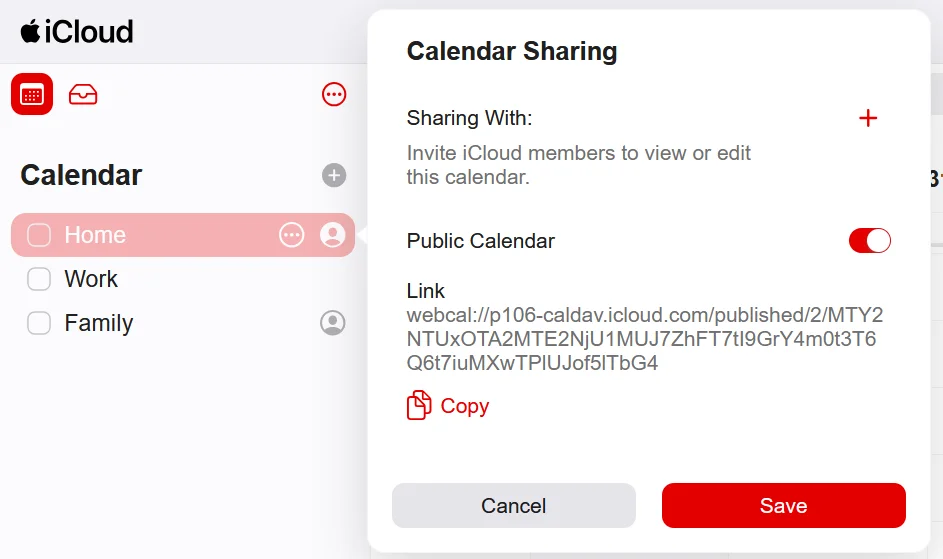
- In iCloud Calendar (icloud.com), click the share icon next to a calendar
- Check Public Calendar and copy the iCloud calendar URL
- Change
webcal://tohttps://in the URL (important for Outlook on the web)- Example:
webcal://p123-caldav.icloud.com/...becomeshttps://p123-caldav.icloud.com/...
- Example:
- In Outlook, go to Add calendar > Subscribe from web
- Paste the HTTPS URL and click Import
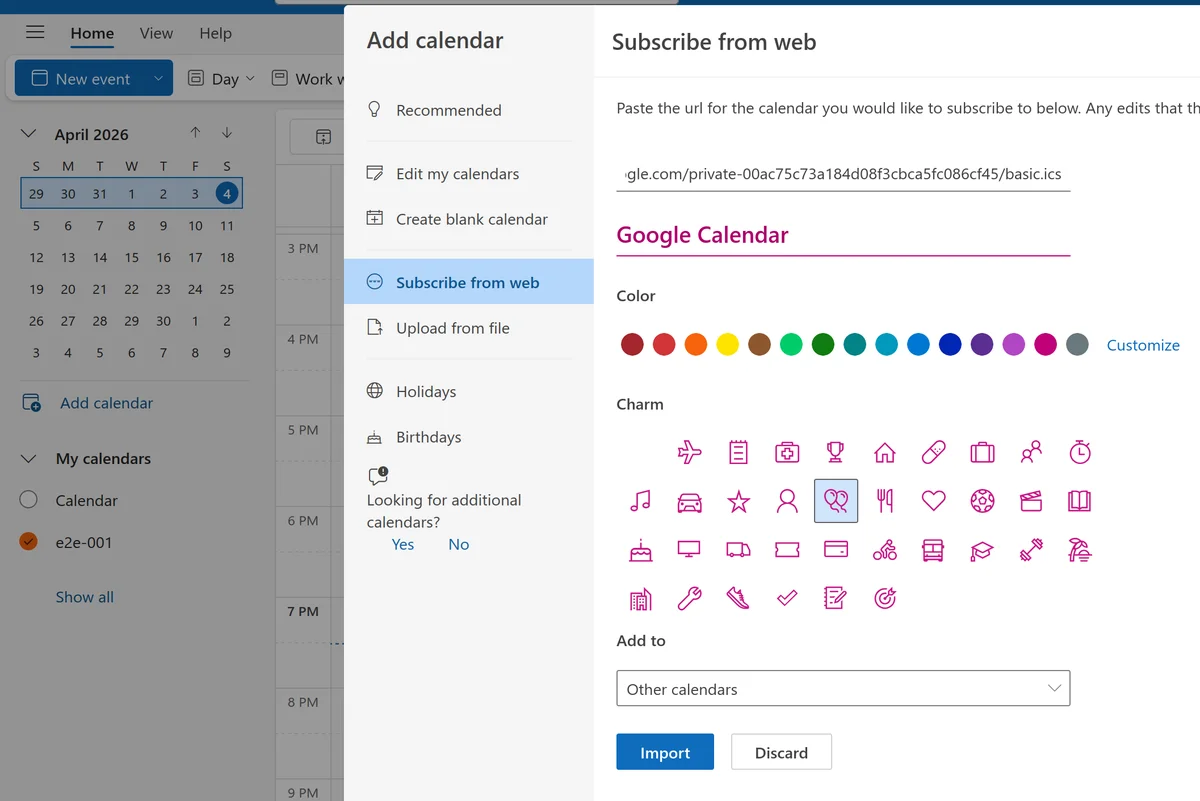
The iCloud calendar now appears in your Outlook sidebar as a separate calendar. A subscription you add on the web also shows in the other Outlook apps signed in to the same account.
Limitations of a URL subscription
- Read-only: You can see iCloud events in Outlook but can’t edit them
- Slow refresh: Outlook re-reads the feed every few hours, and a change in iCloud can take a day or more to show up
- Public only: The iCloud calendar must be set to public, which means anyone with the URL can view it. Sensitive events could be exposed if the URL leaks
- One direction: Outlook events don’t appear in iCloud
- No privacy controls: All event details are visible. You can’t hide them or show only “Busy”
If the subscription breaks (Outlook shows an error next to the calendar), delete it and add it again with a fresh copy of the URL.
Option 4: Copy iCloud events into your Outlook calendar with Hetk
Options 1 to 3 show iCloud next to Outlook. Hetk copies iCloud events into the Outlook or Microsoft 365 calendar you choose, as real events. Because they live in your work calendar, they block your time for colleagues, and they show up in every Outlook app, on the web and on your phone, with nothing to install.
Hetk connects to iCloud via CalDAV and to Outlook via the Microsoft Graph API, and syncs events between them on its own.
Setup
- Go to app.hetk.io and sign in with your Microsoft account
- Add your Apple iCloud account using an app-specific password (generated at appleid.apple.com)
- Select which iCloud and Outlook calendars to sync (you can sync multiple calendars from either service)
- Choose sync direction (one-way for personal → work, or bi-directional if you want events made in either calendar to appear in the other)
- Configure privacy settings (highly recommended for personal → work scenarios)
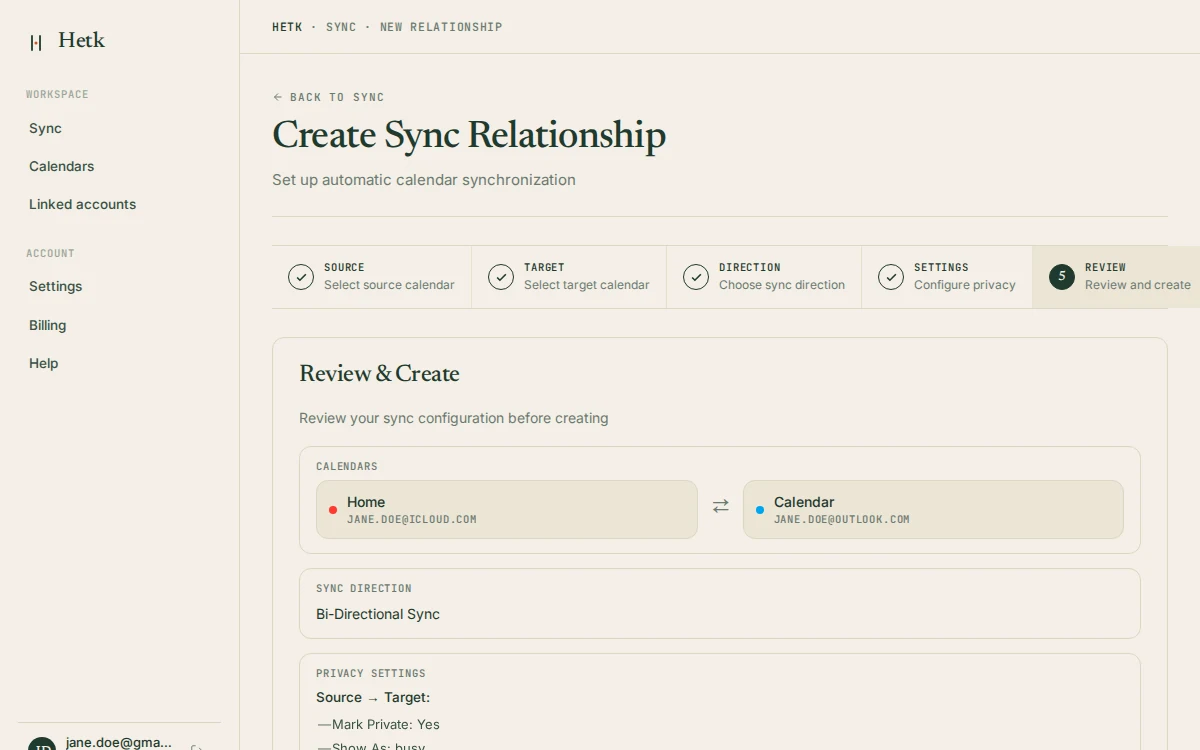
Setup takes about 3–5 minutes, and sync begins immediately.
How it works
- Outlook → iCloud: Changes in Google Calendar and Outlook usually arrive within seconds, through push notifications. A safety check runs every 15 minutes in case a notification is missed.
- iCloud → Outlook: Apple iCloud has no push. Hetk checks iCloud every 5 minutes, and less often for a calendar that has been quiet.
- Privacy controls: You can replace the details with “Busy”, or flag the copy as private in the target calendar
Outlook → iCloud usually takes seconds, while iCloud → Outlook waits for Hetk’s next check. See how sync timing works.
Typical use case
Set up a one-way sync from your personal iCloud calendar to your work Outlook calendar with Replace the details with “Busy” turned on. Here’s what happens:
- When you add a personal event to iCloud (e.g., “Doctor’s appointment”), Hetk syncs it to Outlook as a “Busy” block
- Your coworkers see you’re unavailable during that time
- They can’t see the event title, description, location, or attendees (only “Busy” appears on your Outlook calendar)
- If you delete or reschedule a personal event in iCloud, Outlook updates automatically
Hetk is a paid service, from $15/year, with a 21-day free trial.
How do the four options compare?
| Add iCloud account (Option 1) | iCloud for Windows (Option 2) | URL subscription (Option 3) | Hetk (Option 4) | |
|---|---|---|---|---|
| Cost | Free | Free | Free | From $15/year |
| Works in | New Outlook, Mac, phone apps | Classic Outlook on Windows | All Outlook apps | All Outlook apps |
| iCloud events in your work calendar | No (separate calendar) | No (separate calendar) | No (separate calendar) | Yes |
| Colleagues see you as busy | No | No | No | Yes |
| Calendar must be public | No | No | Yes | No |
| Show only “Busy” | No | No | No | Yes |
| iCloud → Outlook delay | Set by Outlook | Set by iCloud for Windows | Hours, sometimes a day or more | Checked every 5 minutes, less often if quiet |
Summary
To view iCloud in Outlook, the free built-in ways are enough: add your iCloud account in the new Outlook, Outlook for Mac or the phone apps, use iCloud for Windows with classic Outlook, or subscribe to a public link in Outlook on the web.
To make your iCloud events block time in your work calendar, so colleagues can’t book over them, they have to be copied into it. That’s what Hetk does, with an option to show them only as “Busy”.
Troubleshooting
iCloud calendar URL (webcal://) doesn’t work in Outlook
Problem: You copied an iCloud calendar URL and it starts with webcal://, but Outlook on the web says “Invalid URL” or “Can’t add calendar.”
Solution: Outlook on the web needs an HTTPS URL. Change webcal:// to https:// before pasting:
- Example:
webcal://p123-caldav.icloud.com/public.icsbecomeshttps://p123-caldav.icloud.com/public.ics
iCloud for Windows not syncing with Outlook
Problem: You’ve installed iCloud for Windows and turned on Calendars, but iCloud events aren’t appearing in Outlook.
Causes and fixes:
- Wrong Outlook version: iCloud for Windows only works with classic Outlook, not the new Outlook. If you have the new Outlook, use Option 1 instead
- Not finished yet: After installation, give it a few minutes, then restart Outlook
- Sign-in issue: Sign out of iCloud for Windows and sign in again
Outlook says my iCloud address can’t be added
Problem: Adding the account in the new Outlook or Outlook for Mac fails.
Fixes: Use your iCloud email address (@icloud.com, @me.com or @mac.com). If Outlook asks for a password rather than opening the Apple sign-in, create an app-specific password at appleid.apple.com and use that.
Frequently asked questions
Can I add my iCloud calendar to the new Outlook?
Yes. In the new Outlook for Windows, choose Add account, enter your iCloud email address and sign in to your Apple Account in the browser window that opens. Your iCloud calendars then appear under that account. iCloud for Windows doesn’t work with the new Outlook, so use this way instead.
Can I add my iCloud calendar to Outlook for Mac?
Yes. Add your iCloud account in Outlook for Mac the same way, with your iCloud email address. Your iCloud calendars appear in the sidebar next to your other calendars.
Will my coworkers see my iCloud events?
Not with the free methods. Outlook works out when you’re free from your work calendar only, and an added iCloud account or subscription is a separate calendar. To make personal events block your work calendar, they need to be copied into it. Hetk does that and can show them only as “Busy”.
How do I add my Outlook calendar to iCloud or Apple Calendar?
On an iPhone, go to Settings > Apps > Calendar > Calendar Accounts > Add Account and choose Microsoft Exchange or Outlook.com. On a Mac, choose Calendar > Add Account in the Calendar app. Your Outlook events then show in the Apple Calendar app next to your iCloud calendars. They aren’t copied into iCloud, so they don’t show on devices where the Microsoft account isn’t added. To copy them into an iCloud calendar, use a sync service like Hetk.
Why is my iCloud URL subscription delayed?
Outlook decides when to re-read a subscribed calendar, and it does so every few hours. There’s no button to make it faster. If you need changes sooner, add your iCloud account (Option 1) or use a sync service like Hetk.
Can I sync iCloud contacts too?
Hetk only syncs calendar events, not contacts. Adding your iCloud account to the new Outlook or Outlook for Mac brings in iCloud contacts as well, and so does iCloud for Windows with classic Outlook.
What if I have multiple iCloud calendars?
All the free methods handle each iCloud calendar separately; with a URL subscription that means one link per calendar. In Hetk, you set up a separate sync relationship for each one. For example, sync your Personal iCloud calendar to your work Outlook calendar as “Busy”, and your Family iCloud calendar to a separate Family calendar in Outlook.