
Can Google Calendar sync with Outlook? Yes. You have three options, and they are not equal. You can subscribe to a read-only copy (simple, but it refreshes only every 12–24 hours and changes never flow back). You can use Hetk for real, two-way sync that updates within seconds. Or you can export and import an ICS file by hand for a one-time move. If you want both calendars to stay genuinely in step, with events made in either one showing up in the other, you want the second option. The rest of this guide walks through all three so you can pick.
If you use Outlook for work and Google Calendar for personal life (or vice versa), keeping both visible is challenging. Colleagues can’t see your Google Calendar, so they schedule meetings during your blocked time. This guide covers three ways to sync them.
Option 1: Subscribe to a calendar (read-only)
Both Outlook and Google let you subscribe to an external calendar via ICS URL. You get a read-only overlay of the other calendar’s events. Simplest option if you just need to see events without editing or syncing back.
Outlook → Google
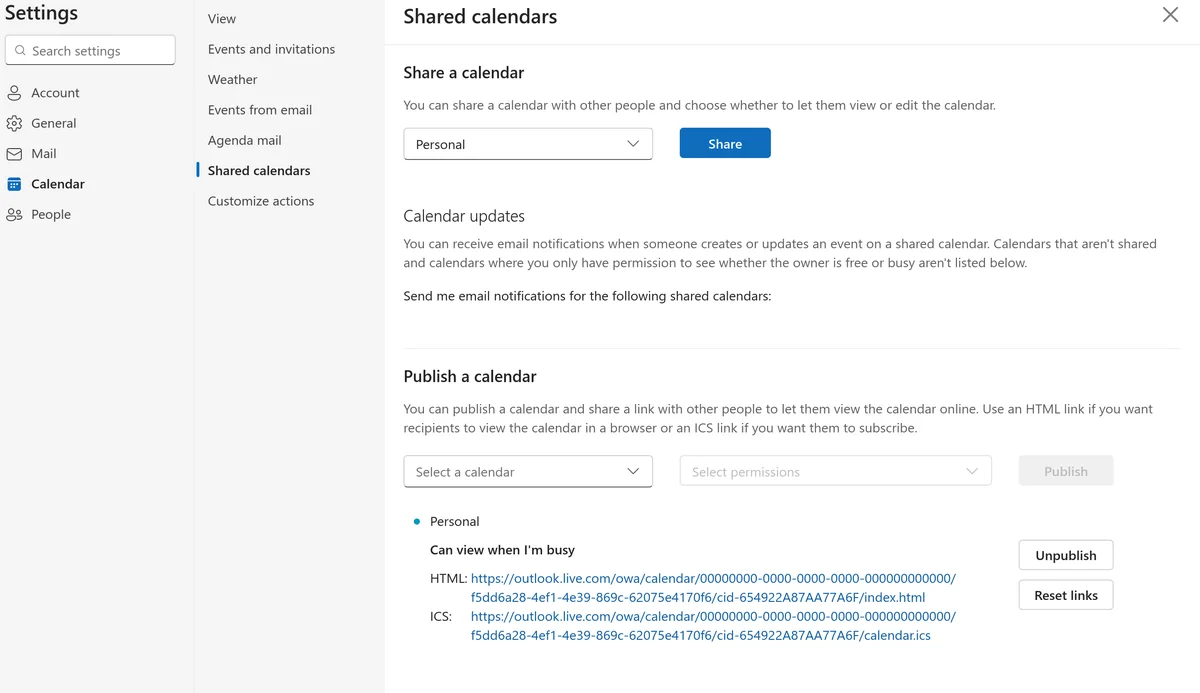
- In Outlook, go to Settings > Calendar > Shared calendars
- Under Publish a calendar, select the calendar and choose Can view all details
- Copy the ICS link
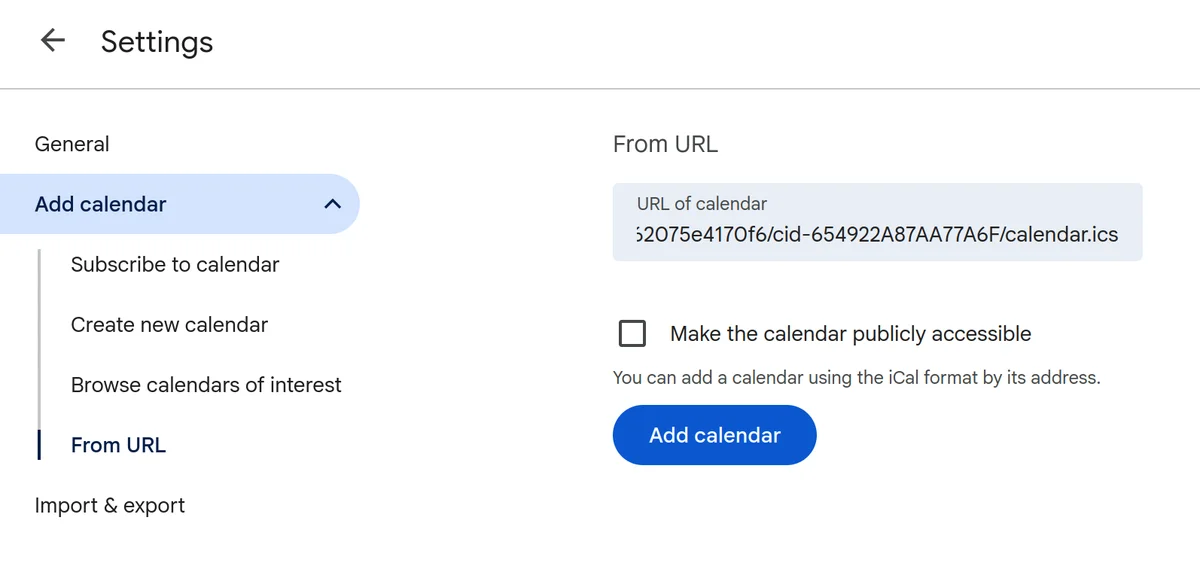
- In Google Calendar, click + > From URL and paste it
Tips:
- Outlook’s published URL is permanent. Google Calendar continues receiving updates as long as the calendar stays shared
- Revoke sharing in Outlook and Google Calendar stops receiving updates
- Google refreshes Outlook ICS subscriptions slowly (12–24 hours)
Google → Outlook
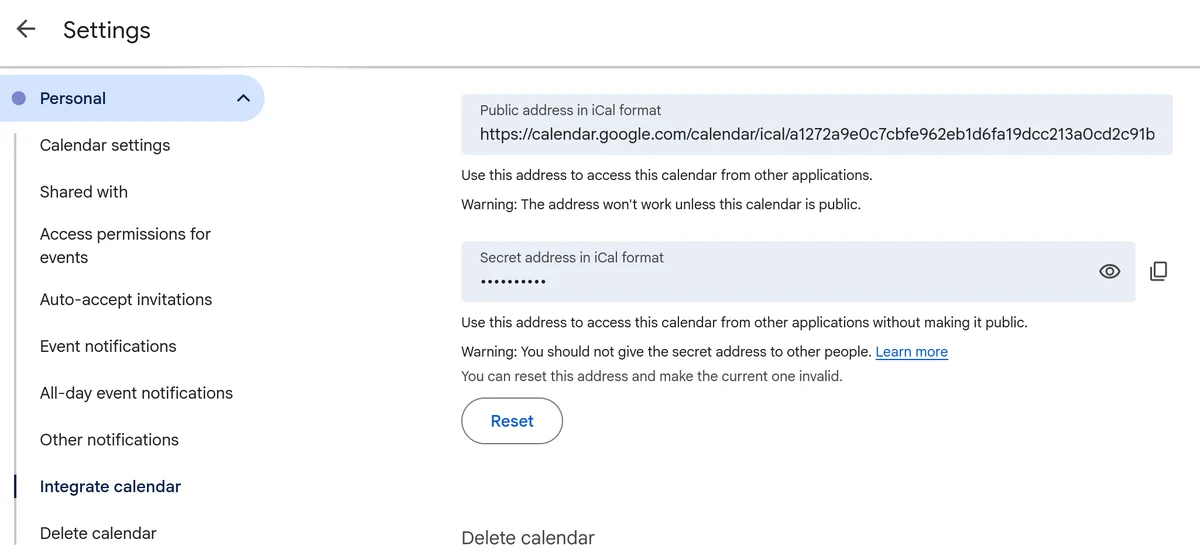
- In Google Calendar, go to Settings > [Calendar name] > Integrate calendar
- Copy the Secret address in iCal format
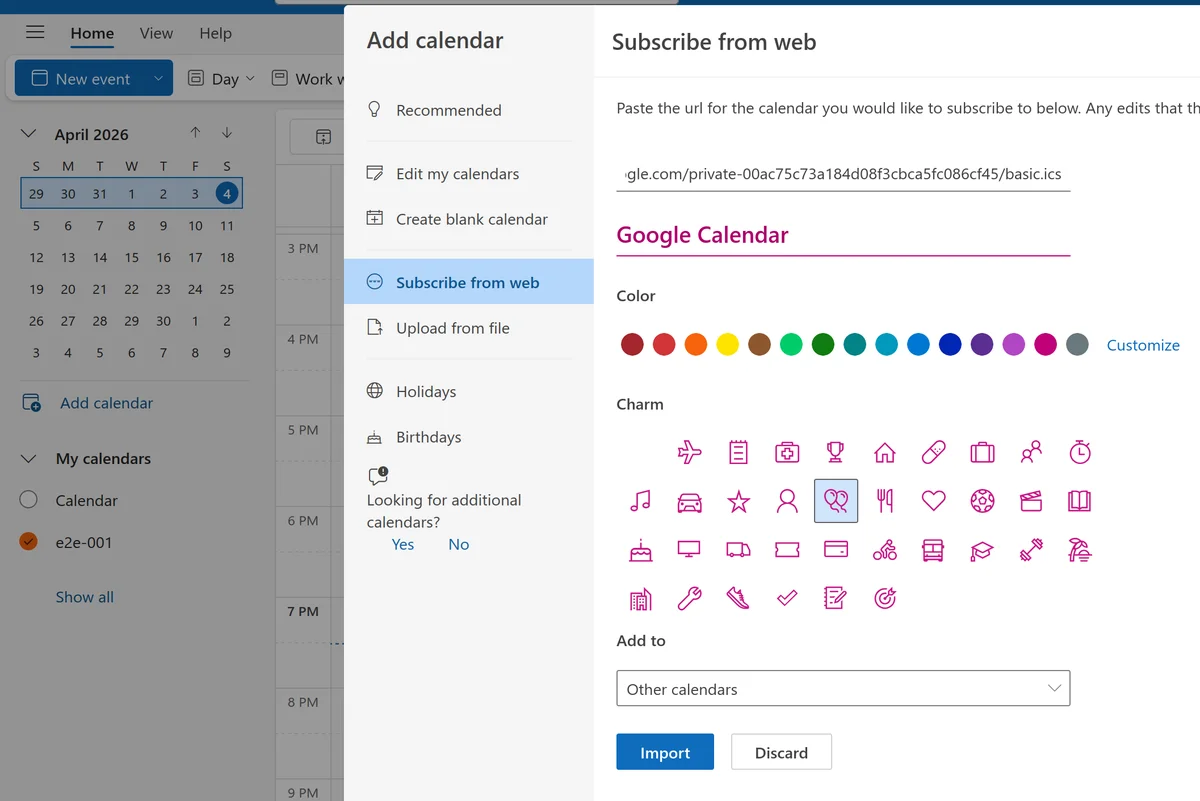
- In Outlook, go to Add calendar > Subscribe from web
- Paste the URL and click Import
Tips:
- Outlook auto-refreshes subscriptions every 12–24 hours. Manually refresh if needed
- Subscribed calendars appear separately in your sidebar, so you can toggle visibility
- On Outlook mobile, subscriptions refresh every 30 minutes to 2 hours
Limitations
- Read-only: you see events but can’t edit them
- Slow updates: 12–24 hours between refreshes
- No privacy controls: all details visible or nothing
- One direction only: set up both sides separately for two-way visibility
- No bi-directional sync: changes don’t flow back
- Limited on mobile
Good for a quick overview, not real sync. Works for viewing someone else’s availability or read-only calendars like holidays.
Option 2: Use Hetk for automatic two-way sync
Hetk connects to Outlook and Google via their official APIs and syncs in real time. Unlike ICS subscriptions, Hetk uses webhooks and polling to keep calendars synchronized with minimal latency.
Setup
- Go to app.hetk.io and sign in with your Microsoft account
- Add your Google account
- Select which calendars to sync
- Choose one-way or bi-directional sync
- Configure privacy settings (optional)
If you sign in with a work Microsoft account and hit a “needs admin approval” screen, that is your company blocking third-party apps, not a Hetk bug — see what that means and how to fix it.
Takes about 2 minutes. Events sync automatically within seconds. Create an event and it appears in the other calendar almost instantly; edit or delete the original and its copy follows.
How syncing works
Hetk uses push notifications from both providers:
- Outlook ↔ Google: Changes in Google Calendar and Outlook usually arrive within seconds, through push notifications. A safety check runs every 15 minutes in case a notification is missed.
- Edits to copies: Each event has one original, in the calendar where it was made. If you edit the copy, Hetk puts it back to match the original
- Deletion handling: Deleting an event in the source removes it from the synced destination. Deleting from the destination recreates it on next sync (source is authoritative)
What you get
- Real-time sync: changes appear in seconds
- Bi-directional: new events in either calendar appear in the other, and edits to the original update the copy
- Privacy controls: replace a copy’s details with “Busy”, flag the copy as private, or both
- Duplicate detection: Hetk won’t create duplicates if a meeting exists in both
- Sync window: Hetk syncs 1 month back and 12 months forward, rolling forward as time passes (changes more than a few weeks out can take a few hours)
Privacy features in detail
When you enable Replace the details with “Busy”, Hetk strips sensitive information:
- Event title becomes “Busy”
- Event description and location removed
- Meeting URL removed
Your coworkers see you’re unavailable but can’t see what the appointment is. Free/busy scheduling tools correctly show you as busy.
Pricing
Personal plan: $15/year for unlimited calendars with up to 3 sync pairs. Professional plan: $50/year for unlimited calendars with up to 8 sync pairs.
Option 3: Manual ICS export/import
Export events as an .ics file and import them into the other calendar. Manual, one-time approach useful for moving events between systems, not for ongoing sync.
Steps
- In Outlook, go to Settings > Calendar > Import & export
- Select the calendar and download the .ics file
- In Google Calendar, go to Settings > Import & export
- Click Select file from your computer and choose the .ics file
Google will import all events and display a progress indicator.
Tips:
- Filter events before export by selecting a specific calendar
- Google asks which calendar to import into
- Large files (1,000+ events) may take a few minutes
- Google Calendar mobile doesn’t support import. Use the web version
Limitations
- One-time snapshot: repeat every time events change
- No sync: changes after export don’t flow to Google Calendar
- Duplicates: importing the same file twice creates duplicates
- No deletions: source deletions don’t remove imported copies
- No privacy controls: all details are preserved
- Manual effort: you remember to re-export and re-import
Only useful for one-time migrations, not ongoing sync. Manual effort becomes impractical if events change frequently.
Which option should you use?
| Need | Best option |
|---|---|
| Quick read-only view | ICS subscription |
| Real-time two-way sync | Hetk |
| One-time migration | ICS export/import |
For most people using both calendars daily, Hetk saves time and prevents double-booking. Try the 21-day free trial.
Can you sync Google Calendar and Outlook both ways?
This is the question most people are really asking, so to be direct: yes, but only one of the three methods does it. ICS subscriptions and manual import are both one-directional; they copy events one way and ignore anything you change on the other side. Two-way sync, where events made in Outlook appear in Google and events made in Google appear in Outlook, needs a tool that talks to both providers’ APIs. That is what Hetk does, syncing within seconds and keeping a single event from turning into two.
A few related questions that come up alongside it:
- Will it create duplicates? No. Hetk matches events across both calendars so a meeting that exists in both is treated as one, not copied again.
- Which way “wins” if I edit the same event in both? The original, in the calendar where the event was made. An edit to the copy is put back to match it.
- Can I keep work details private on my personal calendar (or vice versa)? Yes. Turn on the Replace the details with “Busy” setting for that direction and the event syncs as a plain “Busy” block with the title, location, and attendees stripped.
Bringing iCloud into the same picture works the same way — see add iCloud to Google Calendar and sync iCloud with Outlook.
Troubleshooting
ICS subscription doesn’t refresh
Events added to Outlook or Google aren’t appearing in the subscribed view.
ICS subscriptions refresh on the recipient calendar’s schedule (12–24 hours). Force a refresh by:
- In Google Calendar, click the three-dot menu next to the subscribed calendar and select “Refresh”
- In Outlook, click the calendar and select “Refresh” (not available in all versions)
- Manually re-add the calendar by copying the URL again
If it never refreshes, check the source calendar’s sharing settings in the original service.
Google Calendar not showing Outlook events
You’ve added an Outlook ICS subscription to Google, but events aren’t appearing.
Possible causes:
- Wrong URL format: use HTTPS from Outlook’s “Publish a calendar”, not webcal://
- Calendar not published: Outlook won’t generate an ICS URL for unpublished calendars. Set it to “Can view all details”
- Web vs mobile: sometimes they handle subscriptions differently. Try both
- Subscription failed silently: check your calendar list for an error icon. Remove and re-add with a fresh URL
Confused about sync direction
You’ve set up subscriptions in both directions and changes aren’t syncing back.
ICS subscriptions are one-way and read-only. If you subscribe to Outlook in Google, you see Outlook events but editing or deleting them in Google doesn’t affect Outlook. Subscriptions in both directions give a two-way view, not sync. Changes don’t flow back.
For true two-way sync, use Hetk.
Frequently asked questions
How long does ICS sync take?
ICS subscriptions refresh every 12–24 hours depending on the provider. Outlook is faster (12–18 hours), Google slower (up to 24 hours). You can’t speed this up. For real-time updates, Hetk syncs within seconds.
Can I edit Outlook events from Google Calendar?
No, not with ICS subscriptions. They’re read-only. Editing a subscribed event gives an error. To edit, go to the original calendar. With Hetk, the Outlook event is copied to Google, but an edit to that copy is put back to match Outlook. Edit the event in Outlook and the copy follows.
Does Hetk sync recurring events?
Yes. When you sync a recurring event, the entire series syncs, not just individual instances. Edit one instance and Hetk treats it as a separate event. Modify the entire series and Hetk syncs the full series change.
What happens to events I manually moved or edited?
If you edit a synced copy, Hetk puts it back to match the original, usually within a few hours. To change an event, edit the original in the calendar where it was made.