Calendars come and go. You leave a shared family group in Google. A colleague stops sharing a team calendar with you. You tidy up Outlook and delete a calendar you no longer use, and forget that a sync still points at it.
The sync can’t do its job any more, because one end of it is gone. This post explains what Hetk does then, what you see, and how to fix it.
What Hetk does
When Hetk reads a calendar and Google, Microsoft or iCloud answers that it no longer exists, Hetk does not stop at once. A single failed read can be a hiccup on the provider’s side.
So Hetk usually waits for a second failed read. When that one fails the same way, Hetk pauses every sync that uses that calendar. Your other syncs carry on as usual. A calendar that disappears from one sync never stops the rest of your account.
Before this change, a sync like that kept trying every few minutes, failed every time, and still said Active. Nothing told you why your events had stopped arriving.
What you see
On the dashboard
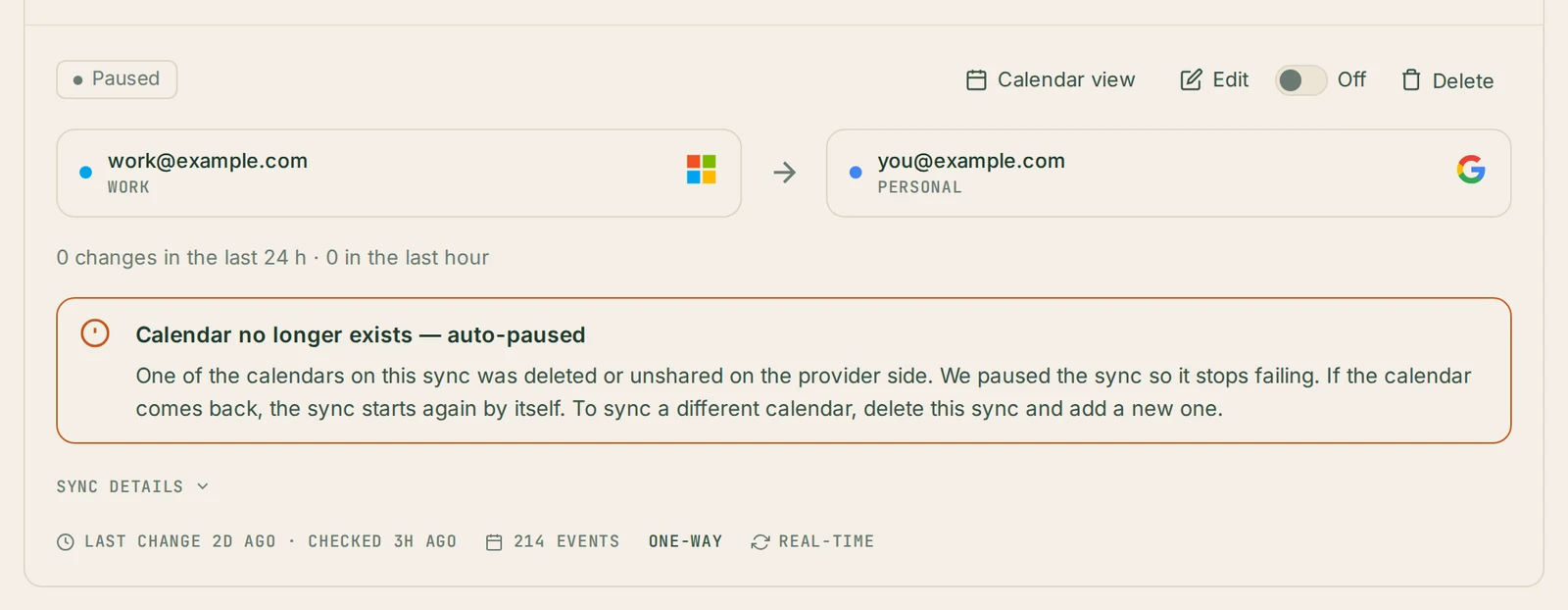
The sync’s card shows a notice:
Calendar no longer exists — auto-paused
One of the calendars on this sync was deleted or unshared on the provider side. We paused the sync so it stops failing. If the calendar comes back, the sync starts again by itself. To sync a different calendar, delete this sync and add a new one.
By email
If the sync has been stopped for 24 hours, Hetk sends you one email, with the subject “Your calendar sync has stopped”. It says that Hetk can no longer update one of the calendars you sync, and it links to your dashboard.
You get one email per outage, not one a day. If the same thing happens again soon after, Hetk waits at least 7 days before it sends another.
The wait is on purpose. A pause can end by itself, for example when someone re-shares a calendar they unshared by mistake, and an email for every short blip would be noise.
What happens to your events
Nothing is deleted because a calendar disappeared.
- The original events are untouched. Hetk never deletes an event in the calendar it copies from.
- The copies stay where they are. If the calendar Hetk copied from is gone, the copies it made in your other calendar stay. Hetk can’t tell whether the original events were deleted or only became unreachable, so it keeps the copies rather than guess.
- If the calendar Hetk copied into is gone, its copies went with it. Your originals are fine, and nothing else needs cleaning up.
So a paused sync leaves your calendars exactly as they were at the moment it paused. It just stops updating them.
If the calendar comes back
About once an hour, Hetk checks whether the calendars of each paused sync exist again. When both calendars of a sync are there, Hetk resumes the sync by itself. You don’t need to press anything.
That covers the common cases:
- Someone unshared a calendar with you, and then shared it again.
- You left a Google family group and rejoined it.
- A calendar was moved and is back where it was.
After it resumes, the sync catches up on whatever changed while it was paused.
If you know the calendar is back but the sync is still paused after an hour or two, email us at [email protected] and we’ll look.
If the calendar is gone for good
A sync always connects the same two calendars. You can’t point an existing sync at a different calendar, so the fix is to replace it:
- On the dashboard, open the paused sync and choose Delete.
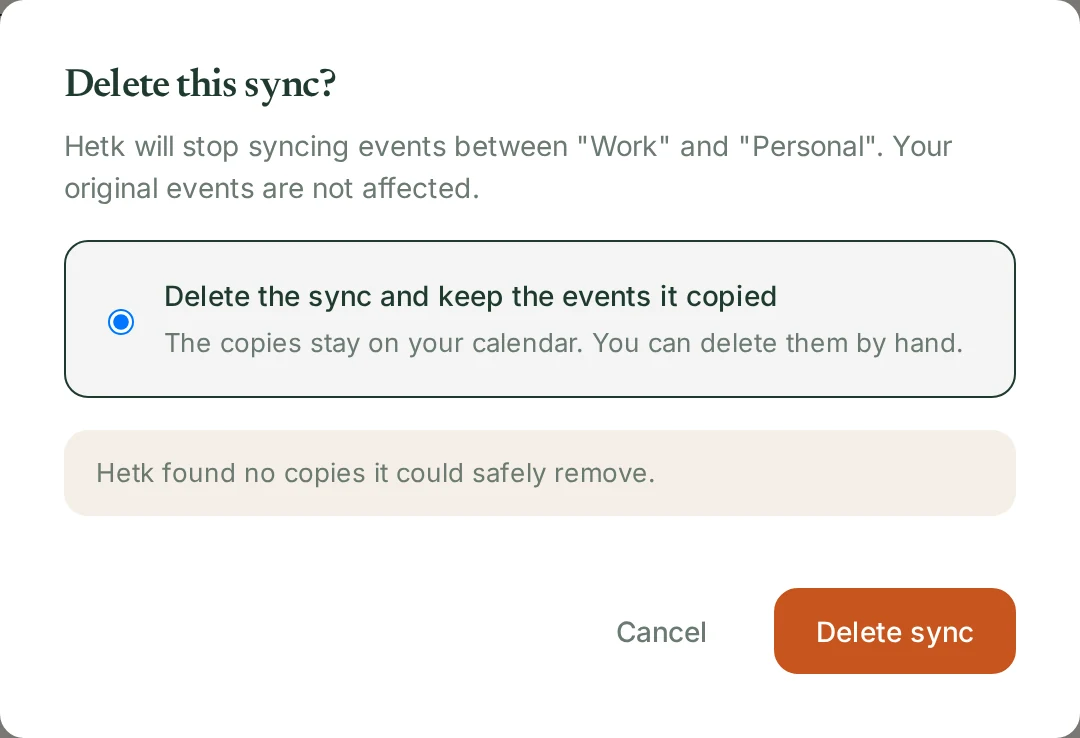
- Hetk asks what to do with the events the sync copied. Delete the sync and keep the events it copied leaves them where they are. Also remove up to N copies Hetk made removes them in the background over the next few minutes. Copies that were changed, or can no longer be removed safely, are kept.
- Press New Sync and pick the calendar you want to use now.
The new sync starts copying your events as soon as you create it.
Before you delete a calendar on purpose
If you already know you are going to delete a calendar, delete its sync in Hetk first. Then you choose what happens to the copies while both calendars still exist. You can keep them, or let Hetk remove them for you.
If you delete the calendar first, Hetk still handles it safely. It pauses the sync and keeps the copies. But then any copies in your other calendar stay behind until you delete the sync yourself, so it saves you a step to do it the other way round.
“Deleted” is not the same as “read-only”
There is a similar case with a different notice. If the calendar still exists, but Hetk is no longer allowed to write to it, for example because it was changed to view-only, the card says Calendar access lost — auto-paused.
The fix there is different. Nothing is gone, so you don’t need a new sync. Restore edit access to the calendar, then press Resume sync on the card.
| What happened | Notice on the card | What to do |
|---|---|---|
| The calendar was deleted or unshared | Calendar no longer exists — auto-paused | Wait if it may come back; otherwise delete the sync and create a new one |
| The calendar is still there, but Hetk can’t write to it | Calendar access lost — auto-paused | Restore edit access, then press Resume sync |
Frequently asked questions
Does one missing calendar stop all my syncs?
No. Hetk pauses only the syncs that use the missing calendar. Every other sync on your account keeps running.
Will Hetk delete my copies when a calendar disappears?
No. A missing calendar never makes Hetk delete anything. The copies stay until you decide, and you only decide when you delete the sync.
How quickly does Hetk notice?
Usually after the second failed read in a row, so a single passing error on the provider’s side doesn’t pause anything. The notice appears on the dashboard as soon as the sync is paused. The email follows once the sync has been stopped for 24 hours.
Do I have to resume the sync myself when the calendar comes back?
No. Hetk checks about once an hour, and resumes the sync once both of its calendars exist again.
Can I change which calendar an existing sync uses?
No. A sync always connects the same two calendars. To use a different calendar, delete the old sync and create a new one. You can keep its copies, or let Hetk remove them.
Does this work the same for Google, Outlook and iCloud?
Yes. The pause, the notice, the email and the hourly check work the same way for all three.